Best Hard Drives And Ssds for NAS: Complete Guide to NAS Storage Drives

Finding the best hard drives and SSDs for your NAS is not always easy. Many people buy the wrong drives, lose data, or waste money. If you want reliable NAS storage for your home or office, you need to understand which drives work well and why. This guide explains everything you need to know about NAS storage drives, including the top choices, differences between HDDs and SSDs, and how to pick the right one for your needs. By the end, you’ll feel confident setting up your own NAS with the best drives for performance and reliability.
What Is NAS and Why Does Drive Choice Matter?
NAS stands for Network Attached Storage. It is a device that holds one or more hard drives or SSDs and connects to your network. You can access files, share media, and back up data across computers, smartphones, and tablets.
The drives you install in your NAS are very important. They affect:
- Speed: How quickly you access files.
- Reliability: How safe your data is from drive failure.
- Capacity: How much data you can store.
- Noise and heat: How quiet and cool your NAS runs.
Choosing the wrong drives can cause data loss, slow performance, or frequent hardware problems. NAS devices run 24/7, so normal desktop drives are not ideal. You need drives made for NAS use.
Hard Drives vs SSDs for NAS
Before picking your drives, understand the difference between hard disk drives (HDDs) and solid-state drives (SSDs).
Hard Disk Drives (HDDs)
HDDs use spinning disks to store data. They are popular for NAS because:
- High capacity: Up to 22TB per drive.
- Affordable: Lower cost per terabyte.
- Good for backups and archives.
But HDDs are:
- Slower: Lower read/write speeds.
- Noisier: Moving parts can make sound.
- More prone to mechanical failure.
Solid-state Drives (SSDs)
SSDs use flash memory, so there are no moving parts. They are:
- Fast: Much higher read/write speeds.
- Silent: No noise during operation.
- Reliable: Less chance of mechanical failure.
However, SSDs:
- Cost more: Higher price per terabyte.
- Lower maximum capacity: Usually 4TB to 8TB per drive.
- Limited write endurance: Each cell can be written a certain number of times.
Which Is Better For Nas?
Most NAS users choose HDDs for large storage and SSDs for speed. Some use both: HDDs for bulk storage, SSDs for caching or fast access.
For home users, NAS-rated HDDs are best for storing movies, photos, and backups. For business, enterprise HDDs or SSDs are better for high-performance tasks.
Key Factors When Choosing NAS Drives
Picking the right drive means looking beyond price and capacity. Here are the main factors:
- NAS Rating: Only use drives labeled for NAS. They are built for 24/7 operation, vibration resistance, and error recovery.
- Capacity: Choose a drive size based on your needs. Common sizes are 4TB, 8TB, 12TB, and 16TB.
- Performance: Look at speed (RPM for HDDs, MB/s for SSDs). Higher RPM means faster access.
- Reliability: Drives with high MTBF (Mean Time Between Failures) are more reliable.
- Warranty: NAS drives usually have longer warranties (3-5 years).
- Noise and Heat: Lower noise and heat are better for home setups.
- Power Consumption: Drives with lower power usage save money over time.
- Cost: Balance price with features and reliability.
- Compatibility: Check your NAS device’s compatibility list.
Many beginners forget about noise and power consumption. Drives that run quietly and efficiently make a big difference, especially in small homes or offices.
Best Hard Drives For NAS: Top Picks
Many brands offer NAS-rated hard drives. Here are the most reliable and popular choices.
1. Wd Red Plus
WD Red Plus drives are made for small and medium NAS systems. They use CMR (Conventional Magnetic Recording) for better reliability.
- Capacity: 1TB to 14TB
- RPM: 5400/7200 (depends on model)
- Warranty: 3 years
- Features: NAS firmware, vibration protection
These drives are quiet and efficient, making them perfect for home or small office NAS.
2. Seagate Ironwolf
Seagate IronWolf drives are designed for NAS with up to 8 bays. They include IronWolf Health Management for monitoring.
- Capacity: 1TB to 18TB
- RPM: 5900/7200
- Warranty: 3 years
- Features: AgileArray firmware, RV sensors
They are reliable and offer strong performance for multi-user environments.
3. Toshiba N300
The Toshiba N300 is built for high reliability and performance.
- Capacity: 4TB to 18TB
- RPM: 7200
- Warranty: 3 years
- Features: Vibration sensors, 24/7 operation
These drives are best for larger NAS setups.
4. Wd Red Pro
For more demanding NAS setups, WD Red Pro offers higher speeds and durability.
- Capacity: 2TB to 22TB
- RPM: 7200
- Warranty: 5 years
- Features: Enhanced reliability, vibration protection
Ideal for businesses or larger home networks.
5. Seagate Exos
Seagate Exos is an enterprise drive. It is used in data centers and also works in high-end NAS systems.
- Capacity: 1TB to 18TB
- RPM: 7200
- Warranty: 5 years
- Features: High MTBF, advanced error correction
These are more expensive but offer top reliability.
6. Synology Hat5300
Synology HAT5300 drives are optimized for Synology NAS devices.
- Capacity: 4TB, 8TB, 12TB, 16TB
- RPM: 7200
- Warranty: 5 years
- Features: Firmware updates via NAS, high compatibility
They offer seamless integration and easy management.
7. Hgst Ultrastar
HGST Ultrastar drives are now part of Western Digital. They are trusted in enterprise environments.
- Capacity: 4TB to 18TB
- RPM: 7200
- Warranty: 5 years
- Features: High MTBF, enterprise reliability
Excellent for critical data storage.
Comparison Of Top NAS HDDs
To make it easy to compare with NAS, see the table below.
| Drive | Capacity | RPM | Warranty | Special Features |
|---|---|---|---|---|
| WD Red Plus | 1TB-14TB | 5400/7200 | 3 years | NAS firmware, vibration protection |
| Seagate IronWolf | 1TB-18TB | 5900/7200 | 3 years | AgileArray, health management |
| Toshiba N300 | 4TB-18TB | 7200 | 3 years | Vibration sensors |
| WD Red Pro | 2TB-22TB | 7200 | 5 years | Enhanced reliability |
| Seagate Exos | 1TB-18TB | 7200 | 5 years | Enterprise reliability |
| Synology HAT5300 | 4TB-16TB | 7200 | 5 years | Optimized for Synology |
| HGST Ultrastar | 4TB-18TB | 7200 | 5 years | Enterprise reliability |
Best SSDs for NAS: Top Choices
If you need faster performance, SSDs are a smart choice. They work well for NAS cache, storing frequently used files, or running virtual machines.
1. Samsung 870 Evo
Samsung 870 EVO is a leading SATA SSD. It is known for reliability and speed.
- Capacity: 250GB to 4TB
- Read/Write Speed: Up to 560/530 MB/s
- Warranty: 5 years
- Features: High endurance, error correction
Ideal for NAS cache or fast storage.
2. Wd Red Sa500
WD Red SA500 is made for NAS environments. It comes in both 2.5” and M.2 versions.
- Capacity: 500GB to 4TB
- Read/Write Speed: Up to 560/530 MB/s
- Warranty: 5 years
- Features: NAS firmware, high endurance
Works well as a cache or main drive in a smaller NAS.
3. Seagate Ironwolf 125 SSD
Seagate IronWolf 125 SSD is designed for NAS with high endurance.
- Capacity: 240GB to 4TB
- Read/Write Speed: Up to 560/540 MB/s
- Warranty: 5 years
- Features: Optimized for 24/7 use
Reliable for intensive NAS workloads.
4. Crucial Mx500
Crucial MX500 offers good performance and value.
- Capacity: 250GB to 2TB
- Read/Write Speed: Up to 560/510 MB/s
- Warranty: 5 years
- Features: Power loss protection
A great option for NAS cache or light storage.
5. Synology Sat5200
Synology SAT5200 is optimized for Synology NAS. It offers high endurance and reliability.
- Capacity: 480GB to 3.84TB
- Read/Write Speed: Up to 530/500 MB/s
- Warranty: 5 years
- Features: Endurance up to 7000 TBW
Best for demanding applications.
6. Kingston Dc500m
Kingston DC500M is a data center SSD used in high-end NAS.
- Capacity: 480GB to 3.84TB
- Read/Write Speed: Up to 555/520 MB/s
- Warranty: 5 years
- Features: Enterprise reliability
Excellent for business NAS setups.
7. Intel D3-s4510
Intel D3-S4510 SSDs are made for reliability and steady performance.
- Capacity: 240GB to 3.84TB
- Read/Write Speed: Up to 560/510 MB/s
- Warranty: 5 years
- Features: Low power, high endurance
Used in professional NAS systems.
SSD Comparison Table
Compare the main NAS SSDs below.
| SSD | Capacity | Read/Write Speed | Warranty | Special Features |
|---|---|---|---|---|
| Samsung 870 EVO | 250GB-4TB | 560/530 MB/s | 5 years | High endurance, error correction |
| WD Red SA500 | 500GB-4TB | 560/530 MB/s | 5 years | NAS firmware, high endurance |
| Seagate IronWolf 125 | 240GB-4TB | 560/540 MB/s | 5 years | 24/7 use, optimized for NAS |
| Crucial MX500 | 250GB-2TB | 560/510 MB/s | 5 years | Power loss protection |
| Synology SAT5200 | 480GB-3.84TB | 530/500 MB/s | 5 years | High endurance, Synology optimized |
| Kingston DC500M | 480GB-3.84TB | 555/520 MB/s | 5 years | Enterprise reliability |
| Intel D3-S4510 | 240GB-3.84TB | 560/510 MB/s | 5 years | Low power, high endurance |
Nas Drive Features That Make A Difference
Not all drives are equal. Some features matter more in a NAS setup.
Nas Firmware
NAS drives have special firmware that controls:
- Error recovery: Prevents the drive from dropping out of RAID.
- Vibration handling: Reduces wear from multiple drives running.
- Power management keeps drives running efficiently.
Desktop drives lack these features. Using them can cause RAID failures or data loss.
Vibration Sensors
NAS drives often include vibration sensors. These detect shaking from other drives and adjust operation to prevent errors.
Error Recovery Controls
When a drive faces a read error, NAS drives use Time-Limited Error Recovery (TLER) or similar. This stops the drive from spending too long trying to fix errors, which could cause RAID failures.
MTBF and TBF Ratings
- MTBF (Mean Time Between Failures): Higher MTBF means better reliability.
- TBW (Terabytes Written): SSDs list endurance as TBW. Choose higher TBW for heavy use.
Health Monitoring
Some NAS drives include built-in health monitoring. For example, IronWolf Health Management checks drive status and warns of issues.
Raid And NAS: How Drives Affect Your Setup
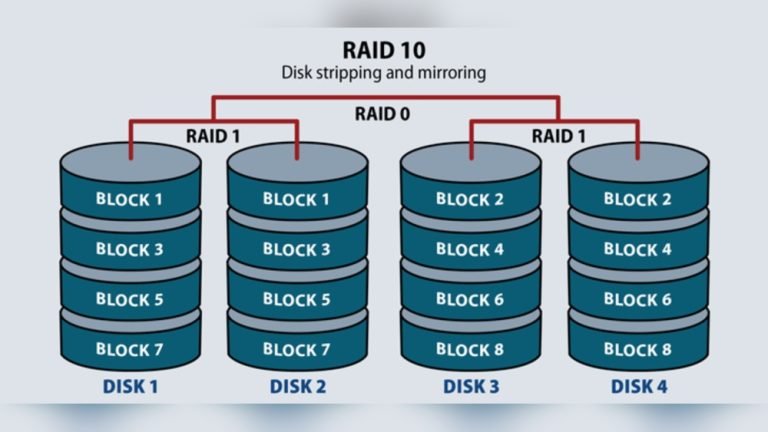
NAS devices often use RAID to combine drives for performance and safety. Common RAID types:
- RAID 1: Two drives mirror data. If one fails, data is safe.
- RAID 5: Three or more drives. Data and parity are spread across drives.
- RAID 6: Four or more drives. Can handle two drive failures.
NAS-rated drives are designed for RAID. They recover from errors quickly and work well together. If you use desktop drives, RAID rebuilds can fail, causing data loss.
How Many Drives Should You Use In Your NAS?
The right number of drives depends on:
- NAS model: How many bays does it have?
- RAID level: What type of RAID do you want?
- Capacity needs: How much storage you require.
For home use, most people start with two to four drives in RAID 1 or RAID 5. Businesses may use six or more drives in RAID 6.
Example: Home NAS Setup
Let’s say you want a 12TB NAS. Using two 12TB drives in RAID 1 gives you 12TB of safe, mirrored storage.
If you use four 4TB drives in RAID 5, you get 12TB usable, with one drive’s worth of protection.
Example: Business NAS Setup
A business may use six 8TB drives in RAID 6. This gives 32 TB usable, with two drives’ worth of protection.
Ssd Cache: Boosting Nas Performance
Many NAS devices allow you to add SSDs as a cache. This means frequently accessed files are stored on fast SSDs, while bulk data stays on slower HDDs.
Benefits:
- Faster file access
- Improved app performance
- Better support for many users
For home NAS, a 500GB to 1TB SSD cache is usually enough. For business, use larger or multiple SSDs.
Common Mistakes When Buying NAS Drives
Many beginners make errors when choosing drives. Avoid these:
- Using desktop drives: They are not designed for NAS and may fail early.
- Mixing drive types: Using both desktop and NAS drives causes issues.
- Ignoring compatibility: Not all drives work in every NAS. Checklists.
- Choosing low-endurance SSDs: Cheap SSDs wear out quickly in NAS.
- Overfilling NAS bays: Too many drives can cause heat and vibration problems.
- Skipping RAID setup: Not using RAID leaves data at risk.
- Ignoring firmware updates: Drives with old firmware can cause errors.
One insight many miss is that firmware updates for NAS drives matter. Manufacturers release fixes that improve reliability. Always check for updates after installation.
How To Install Drives In Your NAS
Installing drives is simple if you follow these steps:
- Check compatibility: Make sure your NAS supports the drives.
- Power off NAS: Always install drives with power off.
- Open NAS enclosure: Follow instructions for your model.
- Insert drives: Slide into bays, secure with screws or clips.
- Close enclosure: Replace covers and secure.
- Power on NAS: Boot up, use NAS software to initialize drives.
- Set up RAID: Choose the RAID level in the NAS menu.
- Update firmware: Check for updates for both the NAS and drives.
Tip: Label your drives with install date. This helps track warranty and plan replacements.
How To Maintain NAS Drives
Proper maintenance keeps your NAS running smoothly.
- Monitor drive health: Use NAS tools to check SMART status and health.
- Update firmware: Regularly update both NAS and drive firmware.
- Keep NAS cool: Use in a well-ventilated area. Clean dust from fans.
- Replace failing drives quickly: If a drive shows errors, swap it out fast.
- Backup data: Even with RAID, always keep a separate backup.
Many people skip regular health checks. Set reminders to review drive status monthly.
Data Table: NAS HDD vs. SSD Comparison
See how HDDs and SSDs compare for NAS use.
| Feature | NAS HDD | NAS SSD |
|---|---|---|
| Capacity | Up to 22TB | Up to 4TB (mainstream), 8TB (enterprise) |
| Price per TB | Low | High |
| Read/Write Speed | 150-250 MB/s | 500-560 MB/s |
| Noise | Moderate | Silent |
| Endurance | MTBF: 1M-2M hours | TBW: 1000-7000 TB |
| Best Use | Bulk storage, backups | Cache, fast data, VMs |
Top Brands For NAS Drives
Choosing trusted brands helps avoid failure and get better support.
- Western Digital (WD): WD Red, WD Red Pro, WD Gold, WD Ultrastar.
- Seagate: IronWolf, IronWolf Pro, Exos.
- Toshiba: N300, MG Series.
- Synology: HAT5300, SAT5200.
- Samsung: 870 EVO, 980 PRO (for cache).
- Crucial: MX500.
- Kingston: DC500M, DC500R.
- Intel: D3-S4510.
These brands have proven reliability in NAS setups. Avoid unknown brands for critical data.
How To Plan Your NAS Storage
Before buying, plan your NAS storage carefully.
- Estimate needs: Calculate how much storage you need now and in the future.
- Choose RAID: Pick the RAID level for safety and speed.
- Select drives: Decide on capacity, brand, and type (HDD/SSD).
- Budget: Balance price with quality and reliability.
- Check NAS compatibility: Review official compatibility lists.
- Consider expansion: Plan for future upgrades.
Example: If you store media, photos, and backups, estimate growth. If you plan to double storage in two years, choose larger drives or a NAS with more bays.
Important NAS Drive Specifications Explained
Many drive specs are confusing. Here’s what matters:
- RPM (HDDs): Higher RPM means faster performance.
- Cache size: A larger cache improves speed.
- MTBF/TBW: Higher means better endurance.
- Interface: SATA is standard, but some NAS support NVMe SSDs for cache.
- Form factor: 3.5” for HDDs, 2.5” for SSDs. Check your NAS.
Some NAS units support NVMe SSDs for cache, which are much faster than SATA. If your NAS has M. 2 slots, consider NVMe SSDs for top performance.
Environmental Considerations for NAS Drives
Drives run 24/7. Heat and vibration can cause failures.
- Keep NAS cool: Place in a well-ventilated spot.
- Monitor temperature: Use NAS software to check temps.
- Avoid stacking: Don’t stack NAS on other electronics.
- Check power supply: Use a UPS to prevent power loss.
A quiet environment helps drives last longer. Many overlook this and place NAS units in hot, crowded spaces.
Real-world Examples: NAS Drive Setups
Home User Example
Tom wants to store family photos and movies. He chooses:
- 2 x WD Red Plus 4TB drives in RAID 1.
- 1 x Samsung 870 EVO 500GB SSD for cache.
This setup gives 4TB of safe storage and fast access to frequently used files.
Small Business Example
A small office needs shared storage for documents and backups. They install:
- 4 x Seagate IronWolf 8TB drives in RAID 5.
- 2 x WD Red SA500 1TB SSDs for cache.
They get 24 TB of usable storage and fast file sharing for all employees.
Enterprise Example
A company runs virtual machines and heavy workloads. They use:
- 6 x Seagate Exos 12TB drives in RAID 6.
- 4 x Kingston DC500M 2TB SSDs for cache.
This setup provides high reliability and performance.
How To Replace Drives In Your NAS
If a drive fails or you want to upgrade, follow these steps:
- Identify failed drive: NAS software will show errors.
- Backup data: Always backup before replacing.
- Power off NAS: For safety.
- Remove bad drive: Take out the failed unit.
- Insert new drive: Slide in replacement.
- Power on NAS: Boot up.
- Rebuild RAID: NAS will rebuild automatically.
Tip: Use drives from the same series or manufacturer for best compatibility.
Security Tips for NAS Storage
Protecting your data is crucial.
- Enable encryption: Most NAS support drive-level encryption.
- Set strong passwords: Use unique, strong passwords for access.
- Keep firmware updated: Update NAS and drives to patch security holes.
- Limit sharing: Only share folders needed.
- Backup externally: Keep a backup outside the NAS.
NAS drives are secure, but weak passwords or old firmware can cause problems.
How To Troubleshoot NAS Drive Issues
Problems can happen. Here’s how to solve common issues:
- Drive not detected: Check connection, compatibility, and power.
- RAID rebuild slow: Use NAS-rated drives, check for old firmware.
- Noise or heat: Replace old drives, improve ventilation.
- Frequent errors: Run health checks, replace failing drives.
- Slow performance: Add SSD cache, use faster drives.
Many users miss that slow RAID rebuilds are often caused by non-NAS drives or old firmware.
Upgrading Your NAS Storage
When you need more space or speed, upgrade your drives.
- Add more drives: If NAS has empty bays.
- Replace with larger drives: Swap smaller for bigger units.
- Add SSDs for cache: Improve speed.
- Upgrade NAS unit: For more bays or faster processor.
Plan upgrades during low-use times to avoid downtime.
Future Trends in NAS Drives
NAS drives are evolving quickly.
- Larger capacities: HDDs now reach 22TB, SSDs up to 8TB.
- Faster interfaces: NVMe SSDs for cache.
- AI-driven health management: Drives now predict failures.
- Lower power usage: Drives are more energy efficient.
Stay updated with new products for best performance.
Frequently Asked Questions
What Is The Difference Between Nas And Desktop Drives?
NAS drives are built for 24/7 operation, with special firmware for error recovery and vibration resistance. Desktop drives are made for occasional use and may fail in NAS setups.
Can I mix HDDs and SSDs in my NAS?
Yes, many NAS devices allow mixing. Use HDDs for bulk storage and SSDs for cache or fast access. Always check compatibility.
How Long Do NAS Drives Usually Last?
NAS drives often last 3-5 years, sometimes longer. Check MTBF ratings and monitor health. Replace drives before they fail for safety.
Should I Use Raid In My Nas?
Yes, RAID improves data safety and performance. RAID 1, 5, or 6 are common for NAS. Always keep a separate backup as RAID is not a true backup.
What Is SSD Cache And Do I Need It?
SSD cache stores frequently accessed files on fast SSDs. It speeds up NAS performance, especially for many users or heavy workloads. Home users benefit from small SSD caches.
Setting up the right NAS drives gives you fast, safe, and reliable storage for years. Plan your setup, choose NAS-rated drives, and maintain them well. With the right choices, your NAS will keep your data secure and accessible, whether for family photos or business files. If you want more technical details, visit Wikipedia for extra information.
Choosing the best hard drives and SSDs for NAS is a smart investment in your digital life. With this guide, you can avoid mistakes, protect your data, and enjoy fast, reliable storage every day.