Common Nas Problems And How to Fix Them: Complete Troubleshooting Guide

Network Attached Storage (NAS) devices have become an important part of both home and business networks. They offer a simple way to store, share, and back up data for multiple users. With a NAS, you can access your files from anywhere, stream videos, or keep important documents safe.
But, like any technology, NAS systems can run into problems. These issues can be frustrating, especially if you rely on your NAS every day. Knowing how to spot and fix common NAS problems can save you time, money, and stress.
This complete troubleshooting guide will walk you through the most frequent NAS issues, explain why they happen, and show you how to fix them. You will learn how to deal with problems like connection failures, slow speeds, disk errors, and more.
Whether you are a beginner or have some experience, this guide will help you keep your NAS running smoothly.
Understanding Nas: How It Works
A NAS is like a small computer that connects to your network and stores files in one place. You can think of it as a smart hard drive that everyone on your network can use at the same time. Most NAS devices run their own operating system, have one or more hard drives, and connect to your router with an Ethernet cable.
You can access your NAS from a PC, Mac, smartphone, or tablet. Many NAS systems offer extra features, such as remote access, automatic backups, and media streaming. They support popular protocols like SMB, NFS, and AFP, making them compatible with different operating systems.
Why Nas Problems Happen
NAS devices are reliable, but several things can cause problems:
- Network issues: Bad cables, weak Wi-Fi, or incorrect settings.
- Disk failures: Hard drives can wear out or break.
- Software bugs: Outdated firmware or apps might not work well.
- User errors: Wrong settings or accidental file deletion.
- Power issues: Sudden shutdowns or unstable power sources.
Understanding these causes helps you solve problems faster and avoid them in the future.
Common Nas Problems And How To Fix Them
Let’s look at the most common NAS problems, why they happen, and how to solve them step by step.
1. Nas Not Detected On The Network
You turn on your NAS, but your computer cannot see it. This is a classic problem, especially after a power cut or router change.
Causes
- Loose or faulty Ethernet cable
- NAS and router are on different subnets
- IP address conflict
- Firewall blocking access
Solutions
- Check the cables: Make sure the Ethernet cable is plugged in tightly to both the NAS and the router. Try a different cable to rule out damage.
- Restart your devices: Power off the NAS, router, and your computer. Wait 30 seconds, then turn them back on, starting with the router.
- Check IP address settings: Log into your router and check if the NAS appears in the device list. If not, use the NAS manufacturer’s setup tool to find and assign a new IP address.
- Firewall settings: On your computer, turn off the firewall temporarily to see if it blocks the NAS. If this works, add an exception for the NAS.
- Subnet check: Make sure your NAS and computer are on the same subnet (e.g., 192.168.1.x).
Non-obvious Insight
If your NAS has a display screen, look for its IP address there. If not, many NAS brands offer a “find my NAS” utility for computers, which can help you discover it even if you cannot see it in your file browser.
2. Slow File Transfer Speeds
You expect fast copying, but files move slowly between your NAS and computer. Slow speeds can make backups and streaming painful.
Causes
- Old or low-quality Ethernet cables (Cat5 instead of Cat5e/Cat6)
- Router or switch only supports 100 Mbps, not 1 Gbps
- Outdated NAS firmware or drivers
- NAS hard drives are nearly full or fragmented
Solutions
- Upgrade cables: Use at least Cat5e or Cat6 Ethernet cables for gigabit speeds.
- Check network hardware: Make sure your router and switches support 1 Gbps (gigabit). Check their labels or settings.
- Update firmware: Log in to your NAS admin page and install any updates.
- Free up space: If your drives are nearly full (over 80%), delete or move files.
- Check hard drive health: Use the NAS’s built-in tools to check for failing drives.
Data Comparison
Here is a quick look at how different network setups affect transfer speed:
| Network Setup | Max Speed (MB/s) | Common Bottleneck |
|---|---|---|
| Wi-Fi (2.4 GHz) | 5-10 | Signal interference |
| Wi-Fi (5 GHz) | 20-50 | Distance from router |
| Ethernet (100 Mbps) | 10-12 | Old router or cable |
| Ethernet (1 Gbps) | 100-120 | Hard drive speed |
Non-obvious Insight
Some NAS systems have built-in energy-saving features that slow down drives to save power. Turn off these settings if you need maximum speed during large transfers.
3. Nas Disk Failure Or Smart Errors
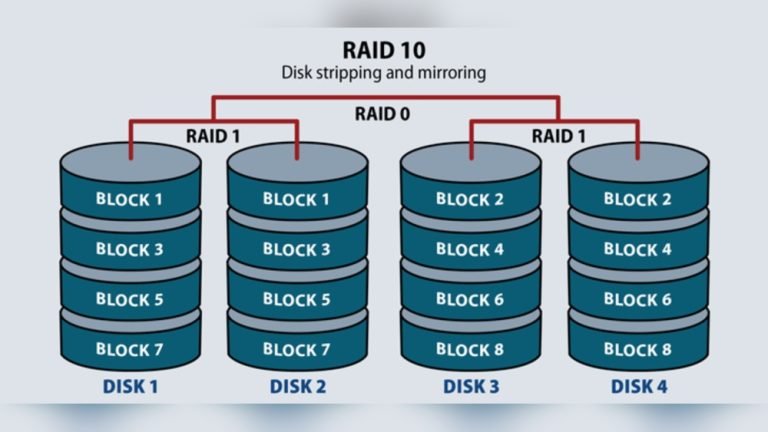
Many NAS systems use RAID for safety, but hard drives can still fail. If you see warnings or hear clicking noises, act quickly.
Causes
- Old hard drives (3-5 years or more)
- Power surges
- Overheating
Solutions
- Backup now: Copy your important files to another device right away.
- Check SMART status: Use the NAS’s admin page to view disk health. Look for errors or warnings.
- Replace failing drives: If one drive is bad, buy the same size or larger. Follow the NAS guide to swap the drive and rebuild the RAID.
- Keep drives cool: Clean dust from vents and fans.
Data Table
Comparison of common RAID levels for NAS and their protection:
| RAID Level | Drives Needed | Data Safety | Usable Storage |
|---|---|---|---|
| RAID 0 | 2+ | None | 100% |
| RAID 1 | 2 | One drive can fail | 50% |
| RAID 5 | 3+ | One drive can fail | (N-1)/N |
| RAID 6 | 4+ | Two drives can fail | (N-2)/N |
Non-obvious Insight
Some NAS brands let you hot-swap drives (change them while the NAS is running). Check your model’s manual to see if this is possible. Never mix different drive sizes or speeds in RAID unless your NAS supports it.
4. Nas Remote Access Not Working
You want to access files from outside your home or office, but remote access fails.
Causes
- Router does not allow port forwarding
- ISP blocks certain ports
- Dynamic IP address changes
Solutions
- Enable UPnP or manual port forwarding: Log into your router and forward the needed ports to your NAS.
- Check NAS cloud service: Many brands offer easy remote access through their own apps.
- Use DDNS: Set up Dynamic DNS on your NAS to handle changing IP addresses.
- Check firewall settings: Both on the NAS and router.
Example
If you use Synology QuickConnect, make sure the service is enabled in the control panel and your NAS has internet access.
Non-obvious Insight
If you cannot use port forwarding, try a VPN to access your home network securely. This is safer than opening ports directly to the internet.
5. Nas Keeps Restarting Or Freezing
A NAS that reboots or locks up is a sign of deeper issues.
Causes
- Overheating or blocked fans
- Faulty RAM or hardware
- Power supply problems
- Firmware bugs
Solutions
- Check for overheating: Place your NAS in a cool area. Clean the vents and fans.
- Test the power supply: Try a new power adapter if possible.
- Run hardware diagnostics: Many NAS systems offer a memory test in the admin panel.
- Update firmware: Install the latest updates from the manufacturer.
- Remove add-ons: Uninstall third-party apps or packages that may cause crashes.
Non-obvious Insight
Some NAS units have a reset button that restores default settings without erasing data. Use this if you cannot access the admin panel, but check your manual first.
6. Cannot Map Network Drive Or Access Shared Folders
You try to map a network drive or access shared folders, but you get errors or cannot find the NAS.
Causes
- Incorrect username or password
- SMB/CIFS protocol not enabled
- Windows network discovery is off
Solutions
- Enable network discovery: In Windows, go to “Network and Sharing Center” and turn on network discovery.
- Check SMB settings: Log into your NAS and make sure SMB (or CIFS) is enabled.
- Correct login details: Double-check the username and password. Use the NAS’s admin account if unsure.
- Try direct IP access: Use `\\NAS-IP-ADDRESS\sharename` in Windows Explorer.
Example
On Mac, use “Go > Connect to Server” in Finder and enter `smb://NAS-IP-ADDRESS/sharename`.
Non-obvious Insight
Windows 10 and 11 sometimes disable SMB v1 for security reasons. If your NAS is old, update its firmware to support SMB v2 or v3.
7. Nas Reports File System Errors Or Cannot Mount Volumes
Your NAS shows errors about the file system or cannot mount a disk volume.
Causes
- Sudden shutdowns or power loss
- Disk corruption
- Firmware bugs
Solutions
- Run file system check: Use your NAS’s admin tools to scan and repair the file system.
- Replace failing disks: If errors continue, swap the drive and rebuild the RAID.
- Check for firmware updates: Update to the latest version to fix bugs.
- Use external recovery tools: If your NAS cannot repair itself, remove the drive and use a PC with recovery software.
Non-obvious Insight
Some NAS devices use special file systems like Btrfs or ZFS. These have built-in repair tools you can access from the admin panel or command line.
8. Nas Cannot Send Or Receive Emails (alerts, Backups)
You set up email alerts or backups, but the NAS cannot send or receive emails.
Causes
- Wrong SMTP server settings
- Firewall or ISP blocks port 25 or 587
- Outdated firmware
Solutions
- Check SMTP settings: Double-check your mail server address, username, and password.
- Try a different port: If port 25 is blocked, use 587 or 465.
- Update firmware: Make sure your NAS supports the latest email security (TLS/SSL).
- Test with another email account: Sometimes, certain providers block automated emails.
Non-obvious Insight
Some NAS systems need an “app password” for Gmail or Outlook. Create this in your email account security settings.
9. Nas Access Denied Or Permission Problems
You or your users cannot access certain folders, or get “access denied” errors.
Causes
- Wrong user or group permissions
- Inherited permissions from parent folders
- User account disabled
Solutions
- Check user permissions: Log into the NAS admin page and review folder permissions.
- Set correct group access: Assign users to groups with the right folder rights.
- Enable user accounts: Make sure the account is active and not locked out.
- Reset folder permissions: Some NAS systems let you reset permissions to default.
Non-obvious Insight
If you use Active Directory, sync issues between your NAS and AD server can break permissions. Resync or rejoin the domain if needed.
10. Nas Backup Failures
Backups fail or do not complete, putting your data at risk.
Causes
- Not enough free space
- Network drops during backup
- Software version mismatch
Solutions
- Free up space: Delete old backups or files.
- Check network stability: Use wired connections for large backups.
- Update backup software: Use the latest version on both the NAS and your computers.
- Split large backups: Break up big jobs into smaller parts.
Non-obvious Insight
Some NAS brands offer snapshot backups, which are faster and use less space. Enable this if your device supports it.
11. Nas Fan Noise Or Overheating
Your NAS is noisy or gets very hot.
Causes
- Dust in fans or vents
- Failing fan bearing
- Placed in a closed space
Solutions
- Clean the vents and fans: Use compressed air to remove dust.
- Move the NAS: Place it in a cool, open area with airflow.
- Replace fans: Order a new fan from the manufacturer if the old one is loud or slow.
- Monitor temperatures: Use the admin panel to check for high temperatures.
Non-obvious Insight
High-end NAS models let you adjust fan speed profiles in the settings. Set to “Cool” for better airflow if noise is not a concern.
12. Nas Firmware Update Problems
Updating the NAS firmware fails, or the device gets stuck during the update.
Causes
- Power cut during update
- Corrupt firmware file
- Not enough free space
Solutions
- Check free space: Make sure you have at least 10% free on the system volume.
- Download firmware again: Get the latest version from the official site.
- Update manually: If auto-update fails, upload the firmware file through the admin panel.
- Factory reset if needed: As a last resort, reset to defaults (data stays safe on most models).
Non-obvious Insight
Always update firmware when the NAS is on a UPS (uninterruptible power supply) to prevent bricking during a power outage.
13. Nas Time And Date Problems
If the NAS clock is wrong, scheduled tasks, backups, or certificates may fail.
Causes
- No internet access for NTP sync
- Manual time set wrong
- Dead CMOS battery (rare)
Solutions
- Enable NTP: Set the NAS to sync time with an internet server.
- Check time zone: Make sure your region is set correctly.
- Replace battery: If the time resets after power loss, the CMOS battery may need changing.
Non-obvious Insight
An incorrect NAS time can stop SSL certificates or apps from working. Always keep the clock accurate.
14. Nas User Account Locked Out
You cannot log in to the NAS admin or user account.
Causes
- Too many wrong password attempts
- IP address blocked by NAS firewall
- Password expired
Solutions
- Wait and try again: Most NAS systems unlock accounts after 5-30 minutes.
- Reset password: Use the “forgot password” option or a physical reset button.
- Whitelist your IP: Add your device’s IP to the NAS’s safe list.
Non-obvious Insight
Some NAS models let you use two-factor authentication for better security. Set this up to avoid lockouts.
15. Nas App Or Service Not Starting
Apps like media servers or backup tools do not start or crash.
Causes
- Outdated or incompatible app version
- Not enough system resources
- Conflicting ports
Solutions
- Update the app: Get the latest version from the NAS app store.
- Close other apps: Free up CPU and memory.
- Change service port: If two apps use the same port, change one in the settings.
Non-obvious Insight
Some NAS systems log app errors in a system log. Check this for clues on why an app will not start.
16. Nas Data Loss Or Accidental Deletion
You or someone else deleted important files by mistake.
Causes
- User error
- Malware/ransomware
- Failed backups
Solutions
- Check recycle bin: Many NAS systems have a built-in recycle bin.
- Restore from backup: Use your most recent backup.
- Use data recovery tools: For deleted files, try recovery software if you act quickly.
- Enable snapshots: If available, use snapshot rollback to restore previous versions.
Non-obvious Insight
Some NAS brands offer WORM (Write Once, Read Many) folders. Use these for files that must never be changed or deleted.
17. Nas Network Loop Or Ip Conflict
Your NAS keeps dropping from the network, or multiple devices fight for the same IP.
Causes
- Two devices with the same static IP
- Network loop from bad cabling
Solutions
- Set NAS to DHCP: Let the router assign an IP.
- Check cables: Avoid connecting both NAS Ethernet ports to the same switch unless you use link aggregation.
- Reserve IP: Set a DHCP reservation in your router for the NAS.
Non-obvious Insight
If your NAS supports link aggregation, enable it only if your switch supports it. Otherwise, it can cause network loops.
18. Nas Security Vulnerabilities
You hear about new NAS security flaws but do not know what to do.
Causes
- Old firmware or apps
- Open ports to the internet
- Weak passwords
Solutions
- Update firmware and apps: Always use the latest versions.
- Close unused ports: Only open what you need for remote access.
- Use strong passwords: Combine letters, numbers, and symbols.
- Enable two-factor authentication: For admin and important accounts.
Non-obvious Insight
Sign up for your NAS brand’s security alerts mailing list to get updates on new threats.
When To Call For Help
Most NAS problems can be fixed with patience and careful steps. But some issues need expert help:
- RAID rebuild fails
- Data is missing and no backup exists
- Firmware update bricks the NAS
- Hardware faults (fans, mainboard, power supply)
If your NAS holds business or mission-critical data, contact the manufacturer’s support or a professional data recovery service.
Preventing Nas Problems: Best Practices
Avoiding problems is better than fixing them. Here are some habits that keep your NAS healthy:
- Keep firmware and apps updated regularly.
- Use a UPS to protect against power loss.
- Monitor disk health and replace drives every 3-5 years.
- Set up automatic backups to a second device or cloud.
- Clean vents and fans every few months.
- Limit internet access to only what you need.
- Use strong, unique passwords for all accounts.
Choosing The Right Nas For Your Needs
Selecting the right NAS helps avoid many problems. Here is a brief comparison of NAS features to consider:
| Feature | Entry-Level NAS | Business NAS | High-End/Home Lab NAS |
|---|---|---|---|
| Drive Bays | 1-2 | 4-8 | 4-12+ |
| Max Users | 5-10 | 50+ | Varies |
| Remote Access | Basic | Advanced (VPN, SSO) | Customizable |
| App Support | Limited | Wide range | Extensive |
| RAID Support | RAID 0/1 | RAID 1/5/6/10 | All types |
Before buying, consider:
- How much storage you need now and in the future
- Number of users and devices
- What apps and features you need
- Your backup and recovery plan
Avoid buying a NAS that is too basic for your needs, as upgrades can be costly later.
Real-world Example: Troubleshooting A Home Nas
Let’s walk through a typical scenario. Alex notices that his home NAS is running slow and sometimes cannot be found on the network. He checks the cables and sees that one is old and loose. He replaces it with a new Cat6 cable.
Next, he logs into the NAS admin panel and updates the firmware. He also checks the hard drive health, which shows one drive is failing. Alex replaces the drive, and the NAS rebuilds the RAID. After these steps, the NAS runs fast again, and all files are safe.
This example shows how simple checks and routine maintenance can solve common NAS problems before they get worse.
Where To Get More Help
If you need more technical support, most NAS brands have their own forums and help centers. For advanced troubleshooting, refer to the official documentation for your model. You can also find community advice and tips on tech sites like Reddit DataHoarder.
Frequently Asked Questions
What Is The Best Way To Back Up A Nas?
Use a 3-2-1 backup strategy: keep three copies of your data, on two different devices, with one copy off-site (like cloud storage or an external drive). Most NAS devices have built-in tools for automatic backups to USB or cloud.
How Often Should I Replace Nas Hard Drives?
Replace hard drives every 3-5 years, even if they seem healthy. Drives wear out over time, and newer ones are faster and safer.
Can A Nas Be Used For Plex Or Media Streaming?
Yes, many NAS devices support Plex or other media server apps. Check if your model has enough CPU and RAM for smooth streaming, especially for 4K videos.
Is It Safe To Access My Nas From The Internet?
It can be safe if you use a VPN or the manufacturer’s secure remote access tools. Avoid opening direct ports unless you use strong passwords and keep firmware updated.
What Should I Do If My Nas Is Not Turning On?
Check the power supply and cables first. Try a different outlet and power adapter. If it still does not turn on, contact support, as there may be a hardware fault.
NAS problems can be stressful, but with the right steps, most issues can be solved quickly. Keeping your system updated, backed up, and well maintained will give you peace of mind and keep your files safe for years.