Business NAS Guide: File Servers Office Storage Surveillance Collaboration And Backup Solutions

A modern business depends on reliable data storage, fast access, and secure sharing. As digital files, surveillance recordings, and team projects grow, many companies face challenges. They need a solution that is safe, easy to manage, and ready for the future. A business NAS (Network Attached Storage) can answer all these needs and more.
NAS is not just for big corporations. Small and medium businesses (SMBs) also use NAS to boost teamwork, protect files, and manage daily work. Whether you run a small office, a growing startup, or a large enterprise, a NAS can help control your data, make backups easier, and simplify your IT setup.
This guide explains how business NAS works for file servers, office storage, video surveillance, team collaboration, and backup. You will learn what matters when choosing a NAS, compare key models, and find practical tips to get the most from your investment.
Let’s explore how the right NAS can make your business more organized, secure, and ready to grow.
Understanding Business Nas
A Network Attached Storage device is a specialized file server. It connects to your office network and lets users save, share, and manage files from anywhere on the network. Most NAS units use standard hard drives or SSDs and have their own operating system, often designed for easy setup and management.
Unlike direct-attached storage (like a USB drive), a NAS stays online and available to multiple users at once. This makes it perfect for offices where many people need access to shared documents, backups, or large files.
Key Benefits Of Nas For Businesses
- Centralized storage: Keep all important files in one place.
- Data protection: Use RAID for redundancy and set up automatic backups.
- Easy sharing: Share files and folders with team members quickly.
- Remote access: Access files securely from outside the office.
- Expandability: Add more drives or upgrade as your business grows.
How Business Nas Differs From Consumer Nas
Business-class NAS devices stand out from home models in several ways:
- Performance: Faster processors and more RAM.
- Redundancy: Multiple drive bays for RAID and backup options.
- Security: Advanced features like encryption, user management, and audit logs.
- Software: Support for business apps, virtualization, and active directory.
While home NAS can work for simple needs, businesses require the reliability and features found in professional models.
Core Uses Of Business Nas
A business NAS serves many roles. The most common are file servers, office document storage, surveillance video archiving, team collaboration, and backup solutions. Each use case has its own best practices and hardware needs.
File Server
A file server is the digital heart of any office. It stores and organizes documents, spreadsheets, presentations, and other work files.
- Access control: Set permissions for who can see or edit each folder.
- Version history: Many NAS systems keep past versions of files, so you can recover older copies.
- Fast search: Find files quickly, even with large data sets.
Office Storage
Modern offices create huge amounts of data: reports, graphics, CAD files, contracts, and more. A NAS gives your team a central hub for all these files.
- Organization: Use folders by department or project.
- Scalability: Add more drives as storage needs grow.
- Cloud integration: Sync with cloud services for offsite backup.
Surveillance Storage
Many businesses use IP cameras for security. These cameras record high-quality video, which quickly fills up storage space.
- Continuous recording: NAS can capture 24/7 video from multiple cameras.
- Playback and search: Review footage easily with built-in tools.
- Data retention: Meet legal requirements for keeping recordings.
Collaboration
Teams need to work on documents together, often in real time. Business NAS systems offer tools for collaboration.
- Shared folders: Let teams access project files from anywhere.
- Sync clients: Desktop and mobile apps keep everyone up to date.
- Edit tracking: See who changed what and when.
Backup Solutions
Data loss can be costly. A NAS acts as a backup target for desktops, laptops, and servers.
- Automated backups: Schedule regular backups for peace of mind.
- Snapshot technology: Quickly restore data after accidental deletion or ransomware.
- Offsite replication: Copy data to another NAS or the cloud for disaster recovery.
Choosing The Right Business Nas
Buying a NAS is a long-term investment. The right choice depends on your business size, data needs, and IT skills. Here are the most important factors to consider.
Storage Capacity
Estimate how much data you need to store now and in the future. Include space for growth, backups, and video surveillance if needed.
- Drive bays: More bays mean more storage options.
- Drive types: Use high-quality NAS-rated hard drives or SSDs.
Performance
Office tasks, large file transfers, or many users require strong hardware.
- CPU: Look for multi-core processors for smooth performance.
- RAM: At least 4GB for small teams; 8GB or more for larger offices or heavy workloads.
- Network: Gigabit Ethernet is standard; 2.5GbE or 10GbE for high-speed needs.
Data Protection
Keep business data safe from hardware failure or user mistakes.
- RAID support: Protects data if a drive fails. RAID 5 or RAID 6 is common.
- Snapshots: Quick way to roll back to earlier data states.
- Encryption: Protects sensitive files from unauthorized access.
Scalability And Expansion
Your business will grow. Choose a NAS that can expand with you.
- Expansion units: Add more storage easily.
- Upgradeable RAM/CPU: Some models let you add more memory or a faster processor.
Software And Features
A business NAS is more than just storage.
- Active Directory integration: Sync users with your Windows domain.
- App ecosystem: Install extra apps for email, surveillance, or collaboration.
- Virtualization: Some NAS can run virtual machines or Docker containers.
Support And Warranty
Business needs are critical. Look for:
- On-site warranty: Fast replacement if hardware fails.
- 24/7 support: Help when you need it, not just during office hours.
Budget
Costs include the hardware, drives, and maintenance. Spending more upfront often saves money later with better reliability.
Common Buyer Mistakes
Many first-time buyers overlook some key details:
- Underestimating storage needs: Data grows fast, especially with video or design files.
- Ignoring backup: A NAS is not a backup by itself. Always back up your NAS data elsewhere.
- Choosing home models: Consumer NAS devices may lack business features and reliability.
- Skipping redundancy: Using a single drive means data loss if it fails.
- Neglecting user permissions: Set up access controls from the start.
Top Business Nas Models For 2026
There are many brands and models of NAS. Here is a comparison of popular choices for businesses of different sizes.
| Model | Bays | CPU | RAM | Max Capacity | Best For |
|---|---|---|---|---|---|
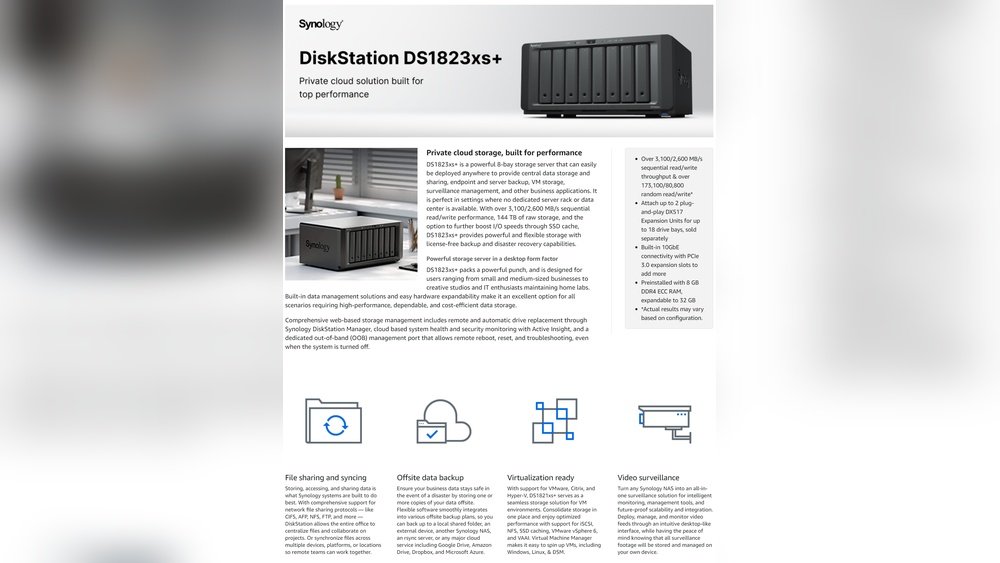
| Synology DS1821+ | 8 | AMD Ryzen V1500B | 4GB (up to 32GB) | 108TB+ | Medium Business, File Server |
| QNAP TS-873A | 8 | AMD Ryzen V1500B | 8GB (up to 64GB) | 144TB+ | Office Storage, Collaboration |
| Asustor Lockerstor 8 | 8 | Intel Atom C3538 | 8GB (up to 32GB) | 128TB+ | Surveillance, Backup |
| Synology RackStation RS1221+ | 8 (rackmount) | AMD Ryzen V1500B | 4GB (up to 32GB) | 108TB+ | Enterprise, File Server |
| QNAP TS-451D2 | 4 | Intel Celeron J4025 | 2GB (up to 8GB) | 64TB+ | Small Office, Entry-level |
Each model offers reliable storage, but features and power differ. Consider future needs before buying.
Setting Up Your Business Nas
A proper setup ensures your NAS works smoothly and safely. Here is a general setup process:
- Unpack and assemble: Install hard drives or SSDs in the drive bays.
- Connect to network: Use Ethernet to link NAS to office router or switch.
- Power on and initialize: Follow the NAS wizard to set up the operating system.
- Create storage volumes: Choose RAID type for data protection.
- Add users and groups: Assign permissions for folders and shares.
- Enable backups: Set up regular NAS-to-cloud or NAS-to-NAS backup.
- Install apps: Add tools for surveillance, collaboration, or other needs.
- Test access: Make sure all users can reach their files.
Initial Configuration Tips
- Use strong admin passwords. Avoid “admin/admin” or default logins.
- Update firmware before using the NAS fully.
- Set up alerts for hardware failures or low storage space.
- Document your setup for easier troubleshooting.
File Server And Office Storage In Detail
A NAS file server is the digital backbone of your office. It stores and organizes all business documents, making access fast and secure.
Folder Structure
Organizing files well saves time and avoids confusion.
- Department folders: Sales, HR, Marketing, Finance.
- Project folders: Each project or client has its own space.
- Archive folders: Move old files to a separate area to keep things tidy.
Permissions And Access
Set up permissions to protect sensitive data.
- Read-only access: For staff who only need to view files.
- Full access: For managers or project leads.
- Guest sharing: Temporary access for outside partners.
Example: Small Business Use
A 15-person design firm uses a Synology DS1821+ as its file server. Each department has its own folder with specific permissions. Daily backups run to another NAS in a second office. Result: fast access, safe data, and peace of mind.
Surveillance Storage With Nas
A NAS is an excellent choice for storing security camera footage. It provides enough space, reliability, and easy management.
How It Works
IP cameras record video, then send it to the NAS over the network. The NAS runs surveillance software to store and organize the recordings.
Key Features
- Multiple camera support: Some NAS units handle 10, 20, or more cameras.
- Event detection: Record only on motion or at certain times.
- Mobile app access: Watch live feeds or review footage from your phone.
Storage Planning
Video files are large, especially with HD or 4K cameras. Estimate your needs:
- Number of cameras: More cameras need more bandwidth and space.
- Retention period: How long you must keep the recordings (e.g., 30 days).
- Resolution and frame rate: Higher quality uses more storage.
Practical Insight
Many businesses forget to check if their NAS supports all camera models. Always confirm camera compatibility with the NAS vendor before buying.
Collaboration And Teamwork
Today’s offices need more than just storage. Teams want to work together, share ideas, and edit documents in real time.
Nas Collaboration Tools
Modern business NAS units offer:
- Shared drives: Team folders with instant sync.
- Document editing: Some NAS devices support web-based editing, like Google Docs.
- Access logs: Track who changed files and when.
Example: Remote Work
A law firm uses QNAP NAS for remote access. Lawyers edit case files from home or on the road. Sync apps keep everyone up-to-date. This improves productivity and reduces email overload.
Integration With Cloud
Some NAS systems work with cloud services like Google Drive, OneDrive, or Dropbox.
- Hybrid sync: Keep copies both locally and in the cloud.
- Automatic uploads: Send important files offsite for disaster recovery.
Hidden Benefit
Many teams discover that a NAS with version history saves hours. Accidentally deleted or changed files can be restored in seconds—no IT ticket needed.
Backup And Disaster Recovery
Data loss can happen to anyone—hardware failure, theft, ransomware, or human error. A business NAS is a strong tool for backup and disaster recovery.
Backup Strategies
- PC and Mac backups: Schedule backups from employee computers to the NAS.
- NAS-to-NAS replication: Copy data to a second NAS, either onsite or at another location.
- Cloud backup: Send critical data to Amazon S3, Google Cloud, or another service.
Snapshot Technology
Snapshots save the state of your files at a point in time. If files are changed or deleted, you can roll back to a previous snapshot.
- Fast recovery: No need to restore everything—recover only what you need.
- Protection from ransomware: Snapshots are not affected by most attacks.
Example: Disaster Recovery
A marketing company uses snapshots and cloud backup. When a ransomware attack hit, they restored clean files from the NAS snapshot and the cloud. Downtime was less than one hour.
Common Mistake
Some businesses think RAID is enough for backup. But RAID protects against drive failure, not accidental deletion or fire. Always have offsite backup in addition to NAS.
Security Best Practices
Data security is critical. Business NAS devices have strong security features, but you must set them up the right way.
User Accounts And Permissions
- Unique accounts: Give each user their own login.
- Least privilege: Only allow access to what each person needs.
- Audit logs: Review who accessed or changed sensitive files.
Network Security
- Firewall: Limit which devices can reach the NAS.
- VPN: Use secure connections for remote access.
- Disable unused services: Fewer open ports mean fewer risks.
Encryption
- At-rest encryption: Protects files on the drives.
- In-transit encryption: Use HTTPS or SFTP for file transfers.
Updates And Patches
- Regular firmware updates: Fix security holes quickly.
- Automatic updates: Some NAS systems can auto-update for you.
Example: Secure Setup
A healthcare company uses a Synology NAS. All data is encrypted, remote access only works through VPN, and user actions are logged. This setup meets HIPAA and other compliance needs.
Real-world Use Cases
A business NAS solves real problems across industries. Here are some examples:
Creative Agencies
Graphic designers and video editors work with huge files. A QNAP or Synology NAS with 10GbE networking handles large project files and quick backups.
Retail Stores
Store chains use NAS for POS data, surveillance video, and inventory files. Central management makes it easy to roll out updates or check footage from all locations.
Law And Accounting Firms
Sensitive client documents require strong security. NAS systems offer encryption, access logs, and offsite backup for compliance.
Construction And Engineering
Teams in the field upload blueprints and photos to the office NAS. Everyone sees updates right away, reducing mistakes and delays.
Medical Practices
Patient records, scans, and reports need safe storage. A NAS with snapshots and encrypted access meets privacy laws and keeps data available.
Monitoring And Maintenance
A business NAS is not “set it and forget it. Regular maintenance ensures smooth operation and data safety.
Health Monitoring
- SMART tests: Check hard drive health automatically.
- Temperature alerts: Prevent overheating, which shortens drive life.
- Fan and power checks: Hardware problems can cause data loss.
Storage Management
- Watch free space: Don’t let drives fill up—growth plan.
- Replace old drives: Hard drives wear out; replace every 3-5 years.
- Test backups: Make sure backups work before you need them.
Firmware And Software Updates
- Schedule updates: Do them during off-hours to avoid disruptions.
- Check app compatibility: Some updates can break older apps.
Support And Troubleshooting
- Document support contacts: Know who to call if there’s a problem.
- Keep spare drives: Replace failed hardware quickly.
Pro Tip
Many NAS brands offer remote monitoring. Set up email or SMS alerts so you know about problems right away.
Comparing NAS to Other Storage Options
Businesses have several choices for data storage. Here’s how NAS compares to other solutions.
| Solution | Pros | Cons | Best For |
|---|---|---|---|
| Business NAS | Centralized, easy to manage, expandable, many features | Initial setup cost, needs basic IT skills | Most SMBs and enterprises |
| Cloud Storage | Accessible anywhere, offsite backup | Monthly fees, slower with large files, privacy concerns | Remote teams, offsite backup |
| Direct Attached Storage (DAS) | Low cost, simple | One user at a time, no network sharing | Single PCs, small offices |
| Traditional File Server | Very customizable, high performance | Expensive, complex, needs IT staff | Large enterprises, custom needs |
A business NAS offers a good balance of cost, features, and ease of use for most organizations.
Cost Of Ownership
A NAS is an investment, but it saves money over time by reducing downtime, data loss, and IT headaches.
Typical Costs
- NAS device: $400 to $5,000+ depending on features and size.
- Hard drives: $50–$300 each, multiply by the number of bays.
- Maintenance: Occasional drive replacement, possible upgrades.
Example: 20-user Office
- NAS: $1,200 (mid-range 8-bay Synology)
- Drives: 8 x 6TB ($160 each) = $1,280
- Total initial: $2,480
- Annual maintenance: $200 (for drive replacement or support)
Hidden Value
Many businesses forget to count lost time or lost files. A good NAS prevents costly mistakes and makes your team more efficient.
Planning For Growth
Your data needs will grow. Choose a NAS that scales with your business.
How To Future-proof
- Choose more drive bays than you need right now.
- Pick models with expansion units for easy upgrades.
- Select a NAS with upgradable RAM or CPU if you expect heavier workloads.
When To Upgrade
- Storage is over 80% full.
- Users report slow performance.
- New projects require more features (like virtualization).
Example: Expansion
A media company started with a 4-bay NAS. In three years, they upgraded to a 12-bay model with an SSD cache to handle video editing. Planning made the transition smooth.
Integration With Existing IT Systems
A NAS should fit into your current office setup.
Network Integration
- Connect to switches for high-speed access.
- Use VLANs for better security and traffic control.
- Bond multiple network ports for better speed and reliability.
User Directory
- Active Directory or LDAP support lets you manage users in one place.
- Single sign-on improves security and reduces password headaches.
Application Support
- Email servers: Some NAS can run email or calendar apps.
- Virtualization: Run lightweight VMs or containers right on the NAS.
- Third-party app support: Add-on packages for backup, media, or business tools.
Pro Insight
Testing integration in a lab environment before going live prevents surprises and keeps the business running smoothly.
Environmental And Energy Considerations
Data storage uses power. Choosing the right NAS can save energy and reduce costs.
Power Efficiency
- Choose a NAS with efficient CPUs.
- Enable drive sleep when not in use.
- Use SSDs for lower energy and faster performance.
Noise Levels
- Rackmount models can be noisy—place them in server rooms.
- Desktop models are quieter for office use.
Example: Green Office
A consulting firm picked a NAS with low-power drives and automatic sleep mode. They reduced energy bills by 20% compared to an old file server.
Best Practices For Backup And Data Protection
Protecting business data is more than just buying a NAS.
3-2-1 Backup Rule
- 3 copies of data: Main, NAS, offsite/cloud.
- 2 different media: Local drives and cloud/NAS.
- 1 offsite copy: Protects against fire or theft.
Regular Testing
- Check backups monthly.
- Practice restores so you know they work.
Documentation
- Keep records of your backup plan.
- Train staff on what to do in case of data loss.
Evaluating Return On Investment (roi)
A business NAS is not just a cost—it increases productivity and reduces risks.
Key Benefits
- Faster file access: Less waiting, more work done.
- Fewer lost files: Quick recovery reduces downtime.
- Better security: Lowers risk of data breaches or fines.
- Easier compliance: Meets legal storage and privacy needs.
Example: Small Business Savings
A 25-person firm switched from USB drives to a NAS. They saved 5 hours per week on file searches and lost files—worth $10,000 per year in staff time.
Training Staff And Setting Policies
Technology is only as good as the people using it.
Staff Training
- Basic NAS usage: How to access, upload, and restore files.
- Security awareness: Avoid phishing, use strong passwords.
- Backup procedures: What to do if files are lost.
Company Policies
- File naming conventions: Avoid confusion.
- Data retention: Know how long to keep files.
- Access reviews: Update permissions when staff change roles.
Non-obvious Insight
Many businesses ignore user training. Even the best NAS will fail if staff do not know how to use it correctly.
Frequently Asked Questions
What is the difference between NAS and a cloud service like Google Drive?
A NAS is a physical device in your office that you control. It stores files locally and often has more features, like RAID and snapshots. Google Drive is a cloud service; you pay monthly, and data is stored offsite. NAS offers more control, speed, and privacy for large files or sensitive data, while cloud services are great for remote access and simple sharing.
How Do I Keep My NAS Safe From Hackers?
To protect your NAS, always use strong passwords, enable two-factor authentication, keep firmware updated, and limit remote access. Use a VPN for offsite connections and disable services you do not use. Regularly review user accounts and audit logs for unusual activity.
Can A Business Nas Handle Both Office Files And Surveillance Video?
Yes, many modern NAS units support both file sharing and surveillance storage. However, you should check the model’s specs and make sure it can handle the number of cameras and users you need. Some brands offer specialized surveillance licenses or software for better management.
How Often Should I Back Up My NAS?
Best practice is to back up your NAS daily for critical business data. Use a mix of local (another NAS or USB drive) and offsite (cloud or remote NAS) backups. Test your backups regularly to ensure you can recover files if needed.
What Is Raid And Why Do I Need It?
RAID (Redundant Array of Independent Disks) is a way to protect data by spreading it across multiple drives. If one drive fails, your files stay safe. RAID 5 and RAID 6 are popular for business NAS. Note: RAID is not a backup; always keep extra copies elsewhere.
For more in-depth information about NAS technology, you can visit Wikipedia on NAS.
A business NAS is a smart investment in your company’s future. With the right setup, you gain control, security, and flexibility. You can focus on growing your business, knowing your data is safe and always available.