Nas Raid Explained: Raid 0 Raid 1 Raid 5 Raid 6 Raid 10 Shr And Which One You Should Choose

Choosing the right RAID level for your NAS (Network Attached Storage) is one of the most important decisions you’ll make when building a storage solution for your home or business. RAID can protect your data, boost performance, or both, but only if you understand the differences between levels like RAID 0, RAID 1, RAID 5, RAID 6, RAID 10, and Synology Hybrid RAID (SHR). Many people feel lost in technical jargon or marketing claims. This guide will cut through the confusion and give you practical, real-world advice to help you pick the best RAID for your needs.
You’ll learn what each RAID type means, how it works, and what you gain (or risk) by choosing it. We’ll look at how many drives you need, what happens if one fails, and how your data is protected. We’ll also cover performance, storage efficiency, and cost. Along the way, you’ll get examples, useful tables, and answers to questions that beginners and even many advanced users often overlook. By the end, you’ll be able to decide with confidence which RAID setup is right for you.
What Is Raid?
RAID stands for Redundant Array of Independent Disks. It’s a way of combining multiple hard drives into one logical unit. This unit can offer faster speeds, better data safety, or a mix of both. RAID isn’t just for companies; home users, photographers, and anyone with important files can benefit.
RAID can be set up in different “levels,” each with its own rules for how data is written, read, and protected. Some RAID types focus on speed, some on backup, and some try to balance both. The right choice depends on your needs, budget, and how much you value your data.
Why Use Raid For Nas?
A NAS device is a small server that stores files and lets you access them over your network. It’s popular for backups, media libraries, and even running apps or virtual machines. But hard drives can fail, sometimes without warning. If you use a single drive, a failure could mean losing everything.
RAID reduces this risk. With the right RAID level, you can keep working even if a drive dies. Some RAID types also speed up file transfers, which matters if many people use your NAS at once.
But, RAID is not a replacement for regular backups. RAID can protect you from hardware failure, but not from accidental deletion, fire, or theft. Always have an off-site backup for truly important data.
Overview Of Common Raid Levels
Here’s a quick look at the RAID levels we’ll cover:
- RAID 0: Striping for speed, no redundancy
- RAID 1: Mirroring for safety, uses two or more drives
- RAID 5: Parity for balance, needs at least three drives
- RAID 6: Double parity for extra safety, needs at least four drives
- RAID 10 (1+0): Combines mirroring and striping, needs at least four drives
- SHR (Synology Hybrid RAID): Flexible, easy-to-expand option mainly for Synology NAS
Let’s break down each one, see how they work, and compare their strengths and weaknesses.
Raid 0: Maximum Speed, Zero Protection
RAID 0 is about speed. It splits (stripes) data across two or more drives. Every file is divided into blocks, and each block is written to a different drive at the same time. This means you get the combined speed of all drives.
How Raid 0 Works
Imagine you have two drives. When you save a file, half goes to drive A, half to drive B. When you read the file, both drives work together, doubling the speed. Add more drives, and it gets even faster.
Benefits
- Super fast read/write speeds — ideal for video editing, gaming, or large file transfers
- No storage loss — you get the full capacity of all drives added together
Drawbacks
- No redundancy — if any drive fails, you lose all your data
- Not safe for important files — best for temporary data or tasks where speed matters more than safety
Example Use Cases
- Video editors working with large raw files
- Temporary scratch disks for data processing
- Gaming systems where backup is not important
RAID 0 is rarely used for NAS storing valuable data. One failed drive, and everything is lost.
Raid 1: Simple Mirroring For Safety
RAID 1 is the easiest way to protect your data. It copies (mirrors) everything to two or more drives. If one drive fails, the other still has all your files.
How Raid 1 Works
Every piece of data is written to both drives at the same time. If drive A dies, drive B takes over instantly.
Benefits
- Strong data protection — safe even if one drive fails
- Simple recovery — just replace the bad drive and rebuild
- Read speeds can improve — both drives can serve data at once
Drawbacks
- Storage cost — you only get half the space (two 4 TB drives = 4 TB usable)
- Write speeds — usually the same as a single drive
Example Use Cases
- Small business file servers
- Home users with photos, documents, or music libraries
RAID 1 is an easy way to boost reliability, but you need to accept that you’ll only use half your total drive space.
Raid 5: Efficient And Balanced
RAID 5 is popular for NAS because it balances speed, storage efficiency, and redundancy. It uses at least three drives and stores “parity” information, which can rebuild data if a drive fails.
How Raid 5 Works
Data is striped across all drives, like RAID 0, but with parity blocks mixed in. If one drive fails, RAID 5 uses the parity info and the remaining drives to rebuild your data.
Benefits
- Good storage efficiency — you lose only one drive’s worth of space for parity
- Can survive one drive failure
- Fast read speeds — close to RAID 0
Drawbacks
- Slower writes — parity calculation adds some overhead
- Rebuild risk — during rebuild, another drive failure means complete data loss
- Not ideal for lots of small writes — parity slows things down with heavy workloads
Example Use Cases
- Office file servers
- Media streaming servers
- Home labs with 3 or more drives
RAID 5 is a favorite for general use, giving good safety and capacity without wasting drives.
Raid 6: Stronger Protection, Slightly Slower
RAID 6 is like RAID 5 but safer. It stores two parity blocks, so it can survive two drive failures at once. This makes it a solid choice for larger arrays or critical data.
How Raid 6 Works
Data and two sets of parity are spread across all drives. If two drives fail, your data is still safe.
Benefits
- Can survive two drive failures
- Storage efficiency — lose only two drives’ worth of space, no matter how many drives
- Good for larger arrays (5+ drives)
Drawbacks
- Write speeds slower than RAID 5 — more parity means more overhead
- Not for small 3–4 drive setups — you lose too much space
Example Use Cases
- Business servers with 5+ drives
- NAS storing important backups
- Video surveillance systems
RAID 6 offers peace of mind for larger or mission-critical NAS setups.
Raid 10 (1+0): The Best Of Both Worlds
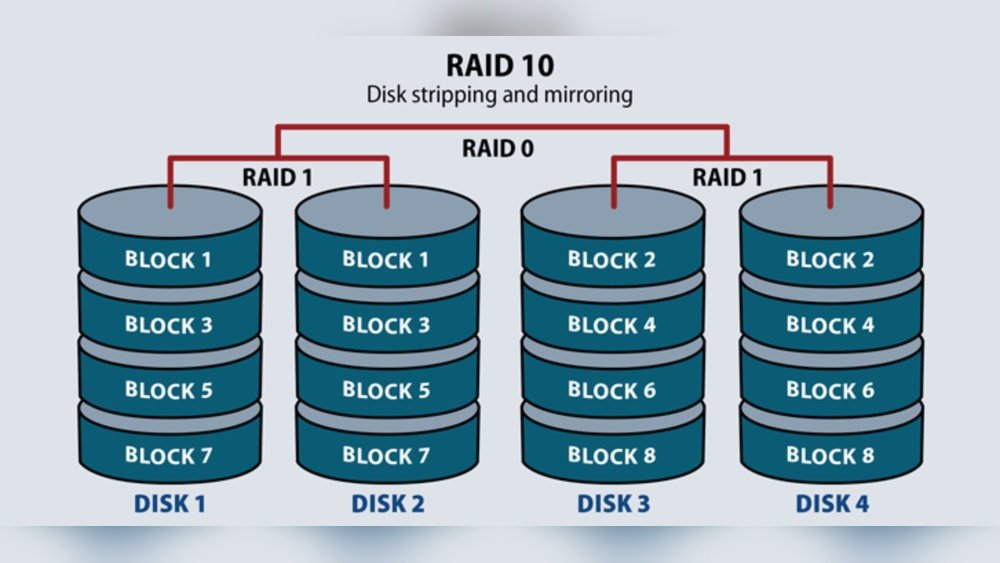
RAID 10 (also called RAID 1+0) combines the speed of RAID 0 with the safety of RAID 1. It needs at least four drives and gives both fast performance and strong protection.
How Raid 10 Works
Drives are grouped into mirrored pairs. Then, data is striped across those pairs. If a drive fails, its mirror keeps running. You can lose one drive in each pair without losing data.
Benefits
- Very fast reads and writes
- Strong redundancy — can survive multiple failures if not in the same mirror set
- Easy recovery
Drawbacks
- High cost — you use half your total drive space
- Minimum four drives needed
Example Use Cases
- Database servers
- Business NAS with heavy traffic
- Users wanting both speed and safety
RAID 10 is perfect for those who want top performance and great protection, if you can afford the drive cost.
Synology Hybrid Raid (shr): Flexible And User-friendly
SHR is unique to Synology NAS devices. It’s designed to make RAID easy, especially if you have disks of different sizes. SHR lets you expand your array later and uses your drives more efficiently.
How Shr Works
SHR automatically builds the most efficient RAID type based on your drives. With two drives, it acts like RAID 1. With three or more, it’s similar to RAID 5 or 6, but can mix different sizes.
Benefits
- Mix any size drives — get more usable space
- Easy to expand — add more drives any time
- Simple setup — less technical knowledge needed
- Good redundancy — one or two-disk fault tolerance
Drawbacks
- Only on Synology NAS
- Small performance penalty — slightly slower than pure RAID 5/6
Example Use Cases
- Home users upgrading over time
- Small offices with mixed drive sizes
- Anyone who wants easy management
SHR is great if you want flexibility or plan to add drives in the future.
Comparing Raid Levels: Storage, Speed, And Safety
To help you see the differences, here’s a comparison of the main RAID types in terms of minimum drives, usable space, fault tolerance, and speed:
| RAID Level | Min. Drives | Usable Space | Drives That Can Fail | Read Speed | Write Speed |
|---|---|---|---|---|---|
| RAID 0 | 2 | 100% | 0 | Very High | Very High |
| RAID 1 | 2 | 50% | 1 | High | Medium |
| RAID 5 | 3 | (N-1)/N | 1 | High | Medium |
| RAID 6 | 4 | (N-2)/N | 2 | High | Low-Medium |
| RAID 10 | 4 | 50% | 1 per pair | Very High | High |
| SHR | 2 | Varies | 1-2 | High | Medium |
Some quick explanations:
- Usable Space shows how much storage you get compared to total drives.
- Drives That Can Fail is the maximum number you can lose without losing data.
- (N-1)/N means if you have 4 drives, 3 are usable (for RAID 5).
- 1 per pair for RAID 10 means you can lose one drive in each mirrored set.
Real-world Raid Performance Example
To see how RAID levels affect speed, let’s look at a simple real-world example with four 4 TB drives:
| RAID Level | Total Capacity | Max Drives Fail | Typical Read (MB/s) | Typical Write (MB/s) |
|---|---|---|---|---|
| RAID 0 | 16 TB | 0 | ~500+ | ~500+ |
| RAID 1 | 8 TB | 1 | ~250 | ~220 |
| RAID 5 | 12 TB | 1 | ~400 | ~300 |
| RAID 6 | 8 TB | 2 | ~380 | ~260 |
| RAID 10 | 8 TB | 2 (if in different pairs) | ~450 | ~430 |
| SHR | Varies | 1-2 | ~400 | ~300 |
Values are approximate and depend on hardware, NAS model, and network. RAID 0 always wins on speed, but you risk everything.
How To Choose The Right Raid For Your Nas
Picking the best RAID level isn’t just about the numbers. It depends on:
- How important is your data?
- How many drives do you have?
- What is your budget?
- Do you want speed, safety, or both?
- Do you plan to expand in the future?
Let’s walk through key points to help you decide.
1. For Maximum Speed (no Redundancy Needed)
If you only care about speed and don’t mind risking your data:
- Choose RAID 0 if you need the fastest possible performance for tasks like video editing and you have a separate backup.
- Remember: If one drive fails, all data is lost. Not for important files.
2. For Simple, Strong Data Protection
If you have two drives and want safety above all:
- Choose RAID 1 for simple mirroring.
- You’ll get half your total storage but great protection.
3. For Best Mix Of Storage And Protection
With three or more drives:
- Choose RAID 5 if you want good capacity, can accept one drive loss, and your workload is mostly reads (like media streaming).
- Choose RAID 6 if you have four or more drives, need extra safety, and are okay with slightly less space and slower writes.
4. For Top Performance And Strong Redundancy
If you have at least four drives and need both speed and safety:
- Choose RAID 10 for fast reads/writes and the ability to lose multiple drives (if failures are in different mirror pairs).
- Costs more in drives, but worth it for heavy workloads.
5. For Flexibility And Easy Expansion (mixed Drive Sizes)
If you use a Synology NAS and want to mix drive sizes or expand later:
- Choose SHR. It gives you redundancy, maximizes usable space, and makes adding drives simple.
Raid Level Decision Tree
Here’s a quick guide to help you choose:
- Only two drives? Go with RAID 1 or RAID 0 (if you want speed, not safety).
- Three drives? RAID 5 is a good start.
- Four drives? RAID 5, RAID 6, or RAID 10—pick based on your need for safety vs. speed.
- Mixed drive sizes? SHR (on Synology NAS).
- Need max safety? RAID 6.
- Need max speed? RAID 0.
- Need balance? RAID 5 or RAID 10.
Common Raid Myths And Mistakes
Raid Is A Backup
One of the biggest myths is that RAID replaces backups. This is false. RAID protects against hardware failure, not against deleting files, viruses, or disasters like fire or theft. You should always have a separate backup, ideally in another location.
All Drives Should Be The Same
While traditional RAID works best with identical drives, SHR and similar systems let you mix sizes. But, total capacity is limited by the smallest drive in classic RAID. Always check before buying.
Rebuilds Are Always Safe
People often think RAID will always save them. During a rebuild (after a drive fails), the stress can cause another drive to fail, especially if your drives are old or nearly full. This is why RAID 6 is popular for bigger arrays.
Bigger Is Always Better
More drives mean more speed or space, but also more risk of failure. With larger arrays, the chance of two drives failing at once goes up. Choose RAID 6 or RAID 10 for better protection.
Practical Insights Most Beginners Miss
1. Hot Spares Can Save Time: Some NAS systems let you install a “hot spare,” an extra drive that takes over instantly if another drive fails. This can reduce downtime but costs extra.
2. Rebuild Time Grows With Size: As drives get bigger, rebuilding a RAID (after a failure) can take many hours or even days. During this time, your data is at risk if another drive fails. For very large drives (10 TB+), RAID 6 or RAID 10 is much safer than RAID 5.
3. Not All RAID Is Hardware: Some NAS use hardware RAID (dedicated controller), others use software RAID (built into the OS). Most home NAS use software RAID, which is easier to manage and recover.
4. RAID Parity Isn’t a Full Backup: Parity helps rebuild lost data, but it doesn’t protect against file corruption. If you overwrite or delete a file, RAID parity cannot bring it back.
5. RAID Doesn’t Protect Against Everything: RAID protects against drive failure, but not against ransomware, viruses, or human error. Always use antivirus and practice safe network habits.
Cost Considerations
When picking a RAID level, cost matters. RAID 1 and RAID 10 use half your drive space, so you need to buy twice as many drives for the same usable storage. RAID 5 and RAID 6 use less space for redundancy, but need more drives to start.
Let’s break down an example with 4 TB drives:
- RAID 1: 2 × 4 TB = 4 TB usable
- RAID 5: 3 × 4 TB = 8 TB usable
- RAID 6: 4 × 4 TB = 8 TB usable
- RAID 10: 4 × 4 TB = 8 TB usable
If you want both high safety and high capacity, RAID 6 or SHR can be the sweet spot for medium to large arrays.
Real-world Example Scenarios
Home User With Photos And Videos
- Drives: 2 × 6 TB
- Best RAID: RAID 1 for simple mirroring
- Why: Easy to recover if one drive fails; you lose half your space, but your memories are safe.
Small Business With Growing Data
- Drives: 4 × 8 TB
- Best RAID: RAID 5 or SHR
- Why: Good balance of space and safety; can survive one drive failure; SHR if planning to expand or use mixed drives.
Media Server For Streaming
- Drives: 5 × 4 TB
- Best RAID: RAID 6
- Why: Can survive two failures, important if family and friends stream media often.
Power User With Heavy Database Use
- Drives: 6 × 2 TB SSDs
- Best RAID: RAID 10
- Why: High speed and redundancy, great for heavy workloads, but you get only 6 TB usable.
Expansion And Migration: Can I Change Raid Later?
Many NAS systems let you expand or migrate your RAID. For example, with RAID 5 or SHR, you can often add more drives and grow your storage without losing data. But, shrinking a RAID (removing drives) is much harder, and some changes (like from RAID 0 to RAID 1) require wiping everything.
Tip: Plan for the future. If you think you’ll need more space later, pick a RAID type that allows easy expansion, like SHR.
Drive Health And Monitoring
RAID helps, but you should still check your drives regularly. Many NAS systems offer S.M.A.R.T. monitoring to alert you if a drive is failing. Replace any drive showing errors right away.
For more technical details on RAID types, see the official Wikipedia RAID article.
Raid And Ssds: Special Considerations
If you use SSDs (Solid State Drives) in your NAS, most RAID rules still apply, but there are a few key differences:
- SSDs fail differently — They wear out over time, not usually from sudden failure. Always check drive health.
- TRIM support — Not all RAID systems support TRIM, which keeps SSDs fast. Make sure your NAS supports it.
- Performance — RAID 0 or 10 can unlock extreme speeds with SSDs, but cost can be high.
Data Recovery And Raid
If your RAID fails, recovery can be tricky. RAID 1 is the easiest (just read from the good drive). RAID 5/6 needs special tools. Always label your drives and keep track of which drive goes where. Some NAS systems let you move drives to a new unit if the old one dies.
Raid 0, 1, 5, 6, 10, Shr: Pros And Cons Summary
Here’s a quick reference:
| RAID Level | Pros | Cons |
|---|---|---|
| RAID 0 | Fastest speed; full storage | No redundancy; data loss if any drive fails |
| RAID 1 | Simple; strong protection | 50% storage loss; not scalable |
| RAID 5 | Good balance; efficient storage | One drive failure tolerance; rebuild risk |
| RAID 6 | High protection; 2 drive failure tolerance | More storage loss; slower writes |
| RAID 10 | Fast; strong protection | Expensive; needs more drives |
| SHR | Flexible; easy expansion | Only on Synology; slight performance hit |
Frequently Asked Questions
What Happens If A Drive Fails In Raid?
If a drive fails in RAID 1, 5, 6, 10, or SHR, your NAS will keep running and tell you to replace the bad drive. With RAID 0, you lose all data. Always replace failed drives quickly to avoid losing more data.
Can I Use Different Sized Drives In Raid?
Classic RAID 1, 5, 6, and 10 need drives of the same size for best results. If you mix sizes, the array will use only as much space as the smallest drive across all. SHR lets you use mixed sizes and gets more usable space.
Is Raid Enough To Keep My Data Safe?
RAID protects against hardware failure, but not against deleting files, viruses, or disasters. Always keep a separate backup of important files, ideally off-site or in the cloud.
Can I Switch Raid Levels Later?
Some NAS allow you to migrate from RAID 1 to RAID 5, or from RAID 5 to 6, as you add drives. But changing from RAID 0 to 1, or to 10, usually means wiping your data. Always read your NAS manual before making changes.
Does Raid Slow Down My Nas?
RAID 5 and RAID 6 can slow down writes a bit because of parity calculations, but most users will not notice the difference for daily use. RAID 0 and 10 are the fastest. SHR is similar to RAID 5/6, with a small overhead.
—
Choosing the right RAID for your NAS is all about understanding your needs. There’s no one-size-fits-all answer. Focus on what matters most: data safety, speed, storage space, and future growth. For home users, RAID 1 or SHR is often enough. Small businesses may prefer RAID 5 or 6. Power users should look at RAID 10. No matter what you choose, always keep a backup, check your drives, and enjoy the peace of mind that RAID can bring to your digital life.