NAS File Sharing Guide: Remote Access, Team Collaboration, File Sync, and Cloud Integration

The way teams work has changed. People share files from different places, collaborate online, and expect fast access to their data. Old file servers often struggle to keep up, especially when teams grow or work remotely. This is where a NAS (Network Attached Storage) system shines. NAS offers secure storage, easy file sharing, and flexible access. It bridges the gap between traditional servers and modern cloud solutions. With the right setup, NAS can enable remote access, smooth team collaboration, automatic file sync, and even connect with the cloud. This guide explains how to use NAS for file sharing, work together as a team, keep files updated, and boost productivity.
What Is NAS and Why Teams Use It
NAS stands for Network Attached Storage. It’s a device connected to your network. Think of it as a smart hard drive that everyone in your office or team can use. Unlike a regular external drive, NAS has its own operating system and can run file sharing, backup, and even apps.
Most NAS devices have multiple drives, offering RAID (Redundant Array of Independent Disks) for safety. If one drive fails, your files are still safe. NAS is easier to manage than old servers, and many models let you add storage as you grow.
Key Benefits Of Nas
- Centralized Storage: All files are in one place.
- Secure Access: Control who can see or edit files.
- Remote Connectivity: Access files from anywhere.
- Automatic Backups: Schedule backups to protect important data.
- Collaboration Tools: Work together on documents, share folders.
- Cloud Integration: Sync with services like Google Drive or Dropbox.
Nas Vs Cloud Storage
NAS offers local control and often lower long-term costs. Cloud storage is easy to use, but you pay monthly and rely on a third party. With NAS, your files are on your own device, but you can still connect it to the cloud for extra flexibility.
| Feature | NAS | Cloud Storage |
|---|---|---|
| Control | Local (self-managed) | Remote (third-party managed) |
| Cost | One-time purchase | Monthly/yearly fees |
| Speed | Fast on the local network | Depends on the internet speed |
| Security | Customizable | Depends on provider |
| Expansion | Add drives easily | Upgrade subscription |
Setting Up NAS for File Sharing
NAS setup is straightforward, but a few steps are essential for smooth file sharing and collaboration.
Choosing The Right Nas Device
Pick a NAS that matches your team’s needs. Consider:
- Drive Bays: More bays mean more storage and options for RAID.
- RAM: More memory helps with multitasking and large files.
- Processor: Faster processors are better for multiple users.
- Apps and Features: Some NAS devices support plugins for collaboration, remote access, and cloud sync.
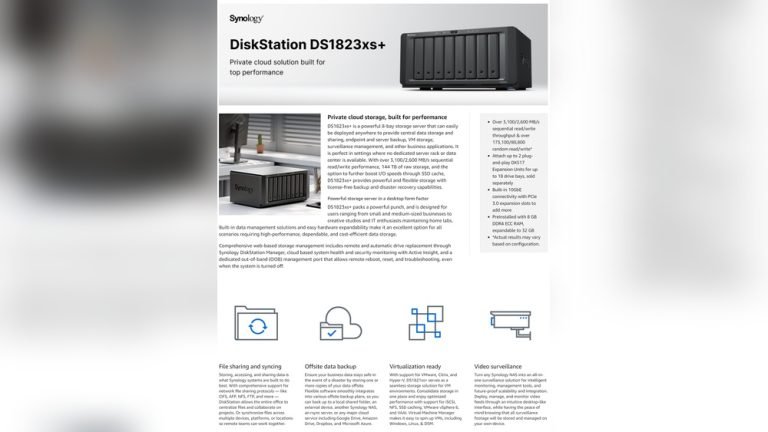
Popular brands include Synology, QNAP, and Western Digital. Synology, for example, offers easy-to-use software and strong remote access features.
Initial Configuration
- Connect NAS to Your Network: Plug it into your router or switch.
- Install Drives: Use recommended drives for reliability.
- Run Setup Wizard: Most NAS devices offer a web-based setup.
- Create User Accounts: Set up users with passwords and permissions.
- Enable Shared Folders: Organize files by team, project, or type.
Securing Your NAS
Security is crucial. Set strong passwords, enable two-factor authentication if available, and keep your NAS firmware updated. Limit guest access and monitor login attempts.
Organizing Shared Folders
Plan your folder structure. For example:
- Projects: Separate folders for each project.
- Departments: Folders for Sales, Marketing, IT.
- Personal: Private folders for each team member.
This makes finding files easier and limits confusion.
Remote Access: How Teams Connect From Anywhere
Remote work is common. NAS systems allow secure access from outside the office.
Methods For Remote Access
- VPN (Virtual Private Network): The safest method. Connect to your office network, then access NAS as if you’re there.
- NAS Web Portal: Many NAS devices offer a browser-based portal. Log in from any computer.
- Mobile Apps: Access files on phones and tablets. Synology and QNAP have free apps for iOS and Android.
- Cloud Sync: Sync files with a cloud service for backup and access.
Setting Up Vpn Access
A VPN creates a safe tunnel to your network. Many NAS devices have built-in VPN servers. Steps:
- Enable the VPN server on the NAS.
- Share connection details with the team.
- Install a VPN client on users’ devices.
This keeps data secure, even on public Wi-Fi.
Using NAS Web Portals
NAS portals are simple. You get a unique address (like mynas. synology. me). Log in, browse files, download or upload as needed. Some portals support editing documents online, which speeds up teamwork.
Mobile Apps For Nas
Mobile apps let you:
- View files
- Upload photos
- Stream videos
- Share links
Apps are handy for sales teams, photographers, or anyone on the go.
Security Tips For Remote Access
- Use HTTPS for web portals.
- Limit admin access from outside.
- Monitor logs for unusual activity.
- Update NAS software regularly.
Many beginners forget to check logs or use weak passwords. These small steps prevent data leaks.
Team Collaboration With Nas
NAS is more than storage. It can boost teamwork with built-in tools and integrations.
Shared Workspaces
NAS lets you create shared folders, calendars, and task lists. Everyone sees updates in real time.
Example: Synology’s Drive app allows teams to share documents, edit together, and track changes. QNAP’s Qsync keeps files updated across devices.
File Versioning
Most NAS devices offer version history. If someone overwrites a file, you can restore a previous version. This is essential for teamwork and prevents data loss.
Real-time Editing
Some NAS apps support real-time editing, similar to Google Docs. You can co-edit Word, Excel, or text files. This saves time and reduces email back-and-forth.
Messaging And Notifications
Many NAS platforms include chat tools or integrate with Slack, Microsoft Teams, or email. Get alerts when files change or when someone comments.
User Permissions
Set who can view, edit, or delete files. For example:
- Admins: Full access
- Editors: Can change files
- Viewers: Read-only
Proper permissions prevent accidental deletions or leaks.
Example: Marketing Team Workflow
A marketing team uses NAS to:
- Share campaign assets
- Track drafts and final versions
- Collaborate on presentations
- Store videos and graphics
They set folders by project, use versioning to avoid mistakes, and assign permissions so only designers edit artwork.
| Team Role | NAS Permission | Main Task |
|---|---|---|
| Manager | Full access | Approve content |
| Designer | Edit files | Create graphics |
| Writer | Edit files | Draft text |
| Intern | View only | Research |
Common Collaboration Mistakes
- Not using versioning. Leads to lost work.
- Poor folder organization. Confuses.
- Weak permissions. Risks accidental deletion.
Set up workflows from the start to avoid these problems.
File Sync Across Devices
Keeping files updated on all devices is vital. NAS offers flexible sync options.
Types Of File Sync
- One-way Sync: Push files from NAS to devices. Good for distributing documents.
- Two-way Sync: Changes on NAS or device update everywhere. Ideal for teamwork.
- Selective Sync: Choose which folders sync to each device.
Setting Up Sync
Most NAS systems have built-in sync tools. For example, Synology Drive and QNAP Qsync.
Steps:
- Install the NAS sync app on computers and phones.
- Choose folders to sync.
- Set sync direction (one-way or two-way).
- Adjust sync schedule (real-time or hourly).
Syncing With External Drives
Some NAS devices support syncing with USB drives. This is handy for backups or moving files between offices.
Syncing Across Multiple Offices
If your team works in different places, use NAS-to-NAS sync. Each office has a NAS, and files sync between them. This keeps all teams on the same page.
Conflict Resolution
When two people edit the same file, the NAS creates conflict copies. Check these regularly and merge changes. Some NAS tools alert you when conflicts happen.
Sync Speed And Bandwidth
Syncing large files can strain your network. Schedule sync during off-hours or use selective sync for big projects.
Practical Example: Design Agency
A design agency syncs project folders between HQ and remote workers. Designers upload drafts, managers review, and edits appear everywhere. This saves email hassle and ensures everyone has the latest files.
| Sync Type | Best Use | Possible Issues |
|---|---|---|
| One-way | Distributing updates | Missed edits from users |
| Two-way | Collaborative projects | File conflicts |
| Selective | Limiting bandwidth | Missing important files |
Common Sync Mistakes
- Syncing too many folders. Slows down devices.
- Not checking conflict copies. Leads to lost changes.
- Ignoring sync logs. Misses errors.
Review sync settings regularly to avoid these issues.
Cloud Integration With NAS
NAS devices can connect to cloud services for backup, sharing, and extra flexibility.
Why Integrate NAS With Cloud
- Backup: Protect files in case of hardware failure.
- Remote Access: Get files from anywhere.
- Disaster Recovery: Restore data after accidents.
- Collaboration: Share files with clients using cloud links.
Supported Cloud Services
Most NAS devices support:
- Google Drive
- Dropbox
- Microsoft OneDrive
- Amazon S3
- Box
Some brands offer their own cloud, like Synology C2.
Setting Up Cloud Sync
- Link your NAS to the cloud account.
- Choose folders to sync.
- Set sync direction (NAS-to-cloud, cloud-to-NAS, or both).
- Schedule sync times.
Cloud sync can be real-time or scheduled. Real-time is fast, but uses more bandwidth.
Hybrid Cloud Solutions
Hybrid cloud combines local NAS and cloud storage. Keep sensitive files on NAS, share others through the cloud.
Example: A law firm stores confidential files on NAS, but shares contracts with clients via Dropbox.
Backup Strategies
- Full Backup: Copy all NAS files to the cloud.
- Incremental Backup: Only new or changed files are synced.
- Snapshot Backup: Take snapshots of the NAS and store them in the cloud.
Incremental backups save bandwidth and storage costs.
Security And Privacy
Encrypt files before syncing to the cloud. Use strong passwords and check cloud providers’ privacy policies.
A common beginner mistake is syncing confidential files without encryption. Always secure sensitive data.
Practical Example: Small Business
A small business uses NAS for day-to-day work. They sync backups to Google Drive every night. If their NAS fails, they restore files from the cloud. They share invoices with clients using Dropbox links, saving time and reducing risk.
Advanced Nas Features For Teams
Modern NAS devices offer more than storage and file sharing. Explore advanced features to improve workflow and security.
User Management And Groups
Create groups for departments or projects. Assign permissions by group, not individual. This simplifies management as your team grows.
Audit Logs
NAS devices keep logs of file access, edits, and deletions. Review logs to spot unauthorized activity or mistakes.
Automated Tasks
Set up automatic tasks like:
- Scheduled backups
- Virus scans
- File archiving
- Email alerts
Automation saves time and reduces human error.
Integration With Business Apps
Some NAS devices support plugins for CRM, ERP, or project management tools. Connect your NAS to apps like Trello, Slack, or Microsoft Teams.
Virtualization
High-end NAS devices can run virtual machines. Host apps or services directly on NAS. This is useful for small offices wanting to cut costs.
Multimedia Streaming
NAS can stream videos, music, or images to smart TVs, phones, or computers. Useful for creative teams or content creators.
Example: IT Department
An IT team uses NAS for:
- Storing software images
- Running backups automatically
- Logging access for compliance
- Streaming training videos to staff
They set up group permissions and automate tasks for efficiency.
Choosing The Best NAS for Your Team
Picking the right NAS is key. Match features to your needs.
Key Factors To Consider
- Capacity: Estimate future growth. Choose an expandable NAS.
- Performance: Look for fast processors and enough RAM.
- Apps and Integration: Make sure the NAS supports your preferred tools.
- Ease of Use: Good web interface and mobile apps.
- Security: Built-in encryption, two-factor authentication, regular updates.
- Support: Reliable customer service and community forums.
Comparing Popular NAS Models
Here’s a comparison of three top NAS options:
| Model | Bays | RAM | Max Users | Cloud Sync | Mobile App |
|---|---|---|---|---|---|
| Synology DS920+ | 4 | 4GB (expandable) | 200+ | Yes | Yes |
| QNAP TS-451D2 | 4 | 2GB (expandable) | 100+ | Yes | Yes |
| WD My Cloud EX2 Ultra | 2 | 1GB | 50+ | Yes | Yes |
Common Buying Mistakes
- Underestimating storage needs. Leads to quick upgrades.
- Ignoring RAM and processor. Slows down with many users.
- Overlooking security features. Risks of data breaches.
- Choosing based only on price. Cheap NAS may lack essential features.
Ask vendors about upgrade options and support. Read reviews from other teams.
Real-world Use Cases
NAS is used in many fields. Here are a few examples.
Creative Agencies
Teams share large graphics and videos. NAS offers fast access and version control. Cloud sync lets clients review drafts.
Law Firms
Confidential documents are stored securely. Team members access files with strict permissions. Cloud backup protects against loss.
Schools And Universities
Teachers share lesson plans; students submit work. NAS supports remote access and easy collaboration.
Small Businesses
NAS centralizes invoices, contracts, and HR files. Sync keeps remote workers updated. Cloud integration offers backup and sharing.
Healthcare
Patient records and images are stored securely. NAS offers audit logs for compliance. Files are backed up to the cloud.
Essential Tips For Nas File Sharing
Get the most from your NAS with these tips:
- Plan Folder Structure: Organize by project, department, or client.
- Set Strong Passwords: Protect user accounts.
- Enable Versioning: Prevent lost work.
- Schedule Backups: Automate to avoid forgetting.
- Monitor Logs: Spot issues early.
- Limit Permissions: Give access only as needed.
- Update Software: Stay safe from bugs and hackers.
- Use Mobile Apps: Boost productivity on the go.
- Check Sync Settings: Avoid conflicts and wasted bandwidth.
- Test Disaster Recovery: Make sure backups restore correctly.
Non-obvious Insights For Beginners
- NAS can host websites: Many NAS devices let you run a small website or blog for your team.
- SSD caching boosts speed: Adding a small SSD improves performance, especially for many users.
- Cloud sync is not the same as backup: Syncing files means changes happen everywhere. A true backup keeps a separate copy in case of mistakes.
- NAS can replace some cloud subscriptions: With cloud integration, you may not need full subscriptions for every service.
- Mobile apps can scan documents: Use phone apps to scan and upload receipts, contracts, or notes directly to NAS.
Frequently Asked Questions
How Secure Is NAS for Remote Access?
NAS security depends on setup. Use strong passwords, two-factor authentication, and VPNs. Keep software updated. Monitor logs for suspicious activity. A properly configured NAS is very secure for remote teams.
Can NAS Replace Cloud Storage Completely?
NAS offers full control and local access. With cloud integration, it covers most needs. However, pure cloud storage may be better for teams without IT support or those needing unlimited scalability. NAS is ideal for teams wanting privacy and flexibility.
What Is Raid And Why Does It Matter?
RAID (Redundant Array of Independent Disks) protects files from drive failure. RAID 1 mirrors data, RAID 5 spreads it across drives. If one drive fails, your files are safe. Always use RAID for team NAS.
How Many Users Can Access Nas At Once?
This depends on the NAS model and network speed. Entry-level NAS supports 10–50 users. Business models handle hundreds. Check specs for maximum users and performance.
Is Cloud Integration Hard To Set Up?
Most NAS devices make cloud setup simple. Link your cloud account, choose folders, set sync direction. Some brands offer guides or wizards. Make sure you understand sync vs backup to avoid accidental data loss.
Final Thoughts
NAS file sharing is a powerful way to keep teams connected, productive, and secure. With remote access, collaboration tools, file sync, and cloud integration, NAS adapts to modern work styles. Whether your team is in the office or spread across the globe, NAS offers the flexibility and control you need.
Plan your setup, use advanced features, and stay secure. As technology evolves, NAS remains a smart choice for teams who want to work better together.
For more detailed comparisons and NAS features, visit Wikipedia.