Nas Security Guide: Protect Your Nas from Ransomware Data Loss And Unauthorized Access

Anyone who owns a Network Attached Storage (NAS) device knows its value. A NAS keeps your important photos, business files, and backups in one place—easy to share, fast to access, and always available. But this convenience brings risks. In recent years, ransomware attacks and unauthorized access have caused huge losses for companies and families. A NAS is not immune; in fact, it can be a prime target. The good news: with the right steps, you can make your NAS much safer.
This guide will show you practical ways to protect your NAS from ransomware, data loss, and unauthorized access. You will learn both simple actions and advanced techniques. Whether you are a home user or run a small business, these tips help keep your data safe. You will also get real examples, data, and answers to common questions.
Why Nas Security Matters
A NAS is more than a hard drive. It connects to your network, sometimes even to the internet. This means anyone with the right (or wrong) access can reach your files. Attackers know this. Cybercrime reports show that ransomware attacks on NAS devices have grown by over 150% in the past three years.
Losing access to your files can stop your work, cost you money, and even put your privacy at risk. For businesses, the average cost of a ransomware attack in 2026 was over $1. 8 million, including downtime and recovery. Even for home users, losing family photos or tax documents can be devastating.
Still, many people do not secure their NAS. Default passwords, open network ports, and poor backups are common mistakes. A strong NAS security plan is not hard, but it requires care and ongoing attention.
Understanding The Main Nas Threats
You cannot protect your NAS if you do not know what you are protecting against. Here are the main threats:
- Ransomware: Malicious software that locks your files and demands payment to unlock them. Ransomware often spreads through weak passwords, outdated software, or infected devices on the same network.
- Unauthorized Access: Hackers or even insiders who get access to your data without permission. This can lead to data theft, leaks, or deletion.
- Data Loss: Caused by hardware failure, accidental deletion, power surges, or natural disasters. Even if attackers are not involved, data can be lost forever without proper backups.
These risks overlap. For example, a ransomware attack is only possible if someone gets unauthorized access. By understanding these threats, you can block them at the source.
Basic Steps To Secure Your Nas
No matter what NAS brand you use (like Synology, QNAP, or Western Digital), some basics apply to everyone.
Change Default Passwords
Many NAS devices ship with default usernames and passwords. Attackers know these. Always change the admin password during setup. Use a unique, strong password with at least 12 characters, mixing letters, numbers, and symbols.
Update Firmware And Apps
Outdated software is a main way hackers get in. Most NAS vendors release updates to fix security holes. Check for firmware and app updates monthly, or turn on auto-update if your NAS supports it.
Limit Network Exposure
Do not connect your NAS directly to the internet unless you must. If you need remote access, use a VPN (Virtual Private Network) instead of exposing ports. Disable UPnP (Universal Plug and Play), which can open ports automatically and make your NAS easier to find.
Create Separate User Accounts
Never use the admin account for daily tasks. Create accounts with only the permissions needed. For example, give your family read-only access to shared folders, not full control.
Enable Two-factor Authentication (2fa)
2FA means you need a code from your phone or email, plus your password. Even if someone steals your password, they cannot log in without the code. Most major NAS systems now offer 2FA—turn it on for all admin accounts.
Advanced Nas Security Measures
After covering the basics, these advanced steps add another layer of safety.
Set Up Network Segmentation
Place your NAS on a separate VLAN (Virtual Local Area Network) or subnet. This limits who can see and access your NAS. For example, your smart TV and guests should not have the same access as your work PC.
Use Encrypted Connections
Always use HTTPS instead of HTTP for web access, and SFTP or FTPS for file transfers. Encryption scrambles data so only your devices can read it. Some NAS systems let you install SSL certificates for added trust.
Control Ip And Device Access
Set up firewalls or access control lists (ACLs) to allow only specific IP addresses or devices. For example, block all connections except from your home network, or only allow your laptop and phone.
Monitor Logs And Alerts
Enable event logging on your NAS. Set up alerts for failed login attempts, changes to files, or new devices connecting. Review these logs regularly—early warnings can stop an attack before it spreads.
Disable Unused Services
Every service (like FTP, Telnet, or web servers) is a possible entry point. Turn off any you do not use. If you use your NAS only for backups, you may not need media streaming or cloud sync features running.
Backup Strategies To Prevent Data Loss
No security is perfect. That is why backups are essential. A good backup can save you even if ransomware strikes.
Follow The 3-2-1 Rule
The 3-2-1 backup rule means:
- Keep 3 copies of your data (original + 2 backups)
- Store them on 2 different types of media (like NAS and external drive)
- Keep 1 backup offsite (at a friend’s house or in the cloud)
This way, even if your NAS fails or is attacked, you can recover your files.
Use Versioned Backups
Many NAS systems support snapshot or versioned backups. This means you can restore files to an earlier state—useful if ransomware encrypts your data. Set your NAS to keep several versions of important files, and test restoring them regularly.
Automate Your Backups
Manual backups are often forgotten. Automate your backup schedule so your NAS copies files to an external drive, another NAS, or a cloud service every day or week.
Test Your Backups
A backup is only useful if it works. Test your backups by restoring a few files every few months. This ensures your process is reliable.
Table: Backup Destination Comparison
Here is a comparison of common backup locations for NAS devices:
| Backup Location | Pros | Cons |
|---|---|---|
| External Hard Drive | Fast, easy, cheap | Can be lost or damaged, not offsite |
| Cloud Storage | Offsite, accessible anywhere, scalable | Slower upload/download, monthly cost |
| Another NAS (offsite) | Full control, fast restores, offsite safety | Requires second device, more setup |
Ransomware Protection For Nas
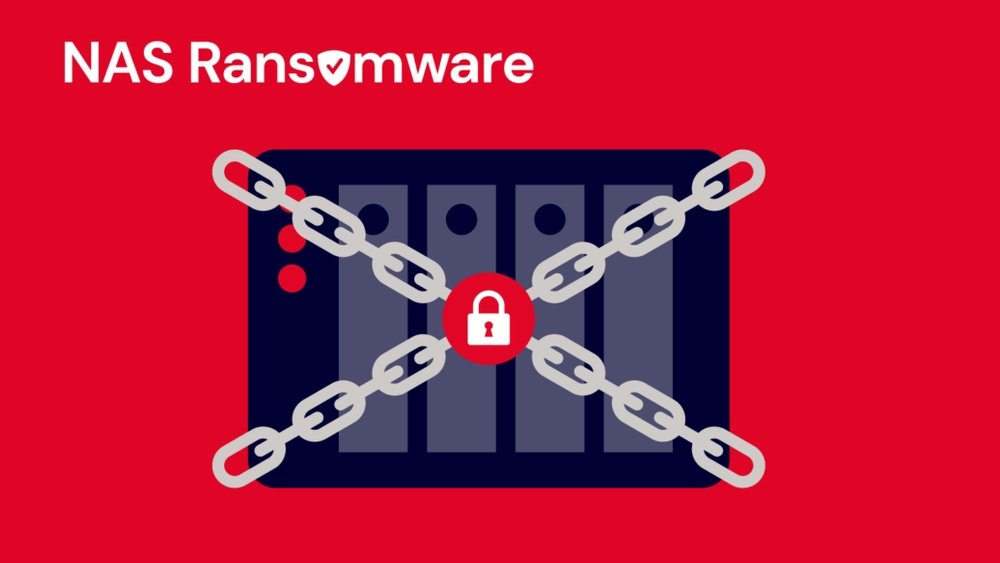
Ransomware is a growing threat. It can encrypt all your files and demand money. Here is how to protect your NAS:
Disable Write Access For Backups
If ransomware attacks, it will try to encrypt all files it can write to. Make your backup folders read-only for most users. Only allow write access during scheduled backup times.
Use Immutable Backups
Some NAS systems and cloud services offer immutable backups. These cannot be changed or deleted for a set time, even by admins. If ransomware hits, your backups are safe.
Scan For Malware
Install or enable built-in antivirus on your NAS. Set it to scan new files and run regular checks. Some systems can also block files with known ransomware names or extensions.
Educate Users
Often, ransomware enters through a user mistake, like opening a bad email link. Teach everyone who uses your NAS about phishing, suspicious files, and safe practices.
Table: Common Ransomware Entry Points
Understanding how ransomware enters helps you block it:
| Entry Point | How It Happens | Prevention |
|---|---|---|
| Email Attachments | User opens infected file | Educate users, filter emails |
| Remote Desktop (RDP) | Weak or open passwords | Use strong passwords, disable RDP if not used |
| Outdated Software | Old NAS firmware with bugs | Update regularly |
| Network Shares | Infected PC accesses NAS | Limit access, scan for malware |
Physical Security And Environmental Protection
Not all threats are digital. Physical risks can also destroy your data.
Store Your Nas Safely
Keep your NAS in a locked room or cabinet. This stops theft and limits who can touch the device. For home users, place it away from windows or public areas.
Use A Ups (uninterruptible Power Supply)
A UPS protects your NAS from power surges and outages. Sudden power loss can corrupt data or damage hardware. A UPS gives your device time to shut down properly.
Protect Against Fire And Flood
If possible, store your NAS above floor level to avoid flood risk. For business users, consider fire-resistant cabinets. Remember, physical disasters are a main cause of data loss.
Table: Physical Security Checklist
Quick reference for protecting your NAS hardware:
| Action | Why It Matters |
|---|---|
| Lock device in cabinet | Prevents theft and tampering |
| Install UPS | Protects from power issues |
| Keep above ground level | Avoids water damage |
| Use fire-resistant storage | Reduces fire risk |
Real-world Examples: Nas Security Success And Failure
Stories help us learn. Here are two cases that show why NAS security matters.
Home User: Ransomware Nightmare
A family in Ohio used a popular NAS to store photos and tax documents. They left default passwords and enabled remote access for convenience. One night, ransomware encrypted all their files. Their backup drive was always plugged in, so it was also attacked.
Because they had no offsite backup and did not use 2FA, they lost everything.
Small Business: Security Pays Off
A small graphic design firm in Texas used a NAS for client files. They set strong passwords, limited remote access, and used daily cloud backups. When an employee’s laptop got a virus, the malware could not reach the NAS due to network segmentation.
The company restored a few lost files from backup and continued working with no big losses.
These examples show that simple steps can mean the difference between disaster and safety.
Fine-tuning User Permissions
Not all users need the same access. By controlling permissions, you reduce risk.
Use Groups Wisely
Create user groups (like Admins, Family, Guests). Assign permissions to groups, not to each user. This makes management easier and less error-prone.
Limit Shared Folder Access
For every shared folder, set permissions carefully. For example, family members may only need read access to photos but full access to their personal files.
Remove Old Accounts
Delete unused accounts as soon as someone leaves your home or company. Old accounts are a common way attackers get in.
Keeping Your Nas Secure Over Time
Security is not a one-time task. It requires regular review.
Regular Security Audits
Every 3–6 months, check your NAS security settings:
- Review user accounts and permissions
- Test backups and restore files
- Check for firmware and app updates
- Read through logs for strange activity
Stay Informed
Follow your NAS vendor’s news. Subscribe to their security bulletins. New threats and patches appear often—staying updated keeps you safer.
Use Strong Password Policies
Require all users to use strong, unique passwords. Change them every 6–12 months. Consider a password manager for easy, secure storage.
Common Mistakes To Avoid
Even experienced users make errors. Watch for these:
- Using default admin accounts: Always rename or disable the default admin, and create a new secure admin account.
- Sharing passwords: Never let users share accounts or passwords.
- Ignoring updates: Delaying updates leaves you open to known bugs.
- Skipping backup tests: A backup that cannot be restored is not a backup.
- Exposing unnecessary ports: Only open the minimum needed for your work.
Useful Tools And Apps For Nas Security
Many tools can help secure your NAS. Here are some worth considering:
- NAS Vendor Security Apps: Most NAS brands offer their own antivirus, firewall, and log viewer apps.
- VPN Software: OpenVPN or WireGuard for secure remote access.
- Password Managers: Bitwarden or LastPass for safe password storage.
- Network Scanners: Advanced IP Scanner or Nmap to check what devices can see your NAS.
- Cloud Backup Services: Services like Backblaze or AWS S3 for offsite backups.
When choosing tools, pick ones supported by your NAS brand.
Cloud Sync And Remote Access: Safe Practices
Many users want to sync NAS files with the cloud or access them remotely. These features are helpful, but risky if not managed well.
Use Official Cloud Sync Apps
Stick to official sync apps from your NAS vendor. Third-party tools may lack security updates or support.
Encrypt Data Before Upload
If you sync files with the cloud, encrypt them first. Some NAS devices can encrypt folders before uploading. Only you should have the decryption key.
Limit Remote Access
Allow remote access only when needed. Use VPN whenever possible. Close access when you do not need it.
Use Secure Sharing Links
For sharing files, use links that expire after a set time. Require passwords for all public links.
Iot And Smart Home Devices: Hidden Nas Risks
Smart TVs, cameras, and other IoT devices often connect to your network. They can be weak points if not secured.
- Put IoT devices on a separate network from your NAS.
- Update IoT device firmware as often as your NAS.
- Never allow IoT devices admin access to your NAS.
Many attacks begin with a weak smart device, not the NAS itself.
Nas Security For Small Businesses
If you run a business, NAS security is even more important.
- Follow all steps above, plus:
- Set clear policies for employees on how to access and store files.
- Use business-grade NAS with built-in security features.
- Require 2FA for all employee accounts.
- Schedule regular training on security awareness.
Many small businesses are targeted because they are seen as easy victims.
Nas Security Myths And Facts
Some beliefs about NAS security are misleading. Let’s clear up a few.
- Myth: “My NAS is safe because it is not on the internet.”
Fact: Even local network attacks and infected devices can harm your NAS.
- Myth: “Cloud backups are always safe.”
Fact: If your cloud account is hacked, or if you sync infected files, you can still lose data.
- Myth: “Ransomware only hits Windows PCs.”
Fact: Ransomware can target network shares and NAS devices directly.
- Myth: “Strong passwords are enough.”
Fact: Passwords help, but you also need updates, backups, and limited access.
Knowing the facts helps you avoid dangerous shortcuts.
How To Recover From A Nas Attack
If your NAS is attacked, act fast.
- Disconnect your NAS from the network to stop further spread.
- Do not pay ransom—there is no guarantee you will get your files back.
- Check your backups. Restore from the most recent clean copy.
- Scan all connected devices for malware before reconnecting your NAS.
- Update your NAS firmware and change all passwords.
- Review logs to see how the attack happened and fix the weak point.
If you have no backup, seek help from data recovery professionals, but results are not guaranteed.
Table: Nas Security Checklist
A quick reference for ongoing safety:
| Task | Frequency | Goal |
|---|---|---|
| Update firmware/software | Monthly | Patch security holes |
| Check backup status | Weekly | Ensure recoverability |
| Review user accounts | Quarterly | Remove old accounts |
| Test backup restore | Every 6 months | Verify backup integrity |
| Review access logs | Monthly | Spot suspicious activity |
Frequently Asked Questions
What Is The Safest Way To Access My Nas Remotely?
The safest method is to use a VPN (Virtual Private Network). VPNs create a secure tunnel between your device and your NAS, hiding your data from attackers. Avoid exposing ports directly to the internet. Many NAS brands have built-in VPN servers—enable and use them for all remote access.
Can Ransomware Infect My Nas Even If I Use Apple Or Linux Computers?
Yes. Ransomware attacks do not depend on your operating system. If an infected device has access to your NAS, the malware can encrypt files on the network share. Always use strong permissions and versioned backups, regardless of your OS.
How Often Should I Update My Nas Firmware?
Check for updates at least once a month. Turn on auto-update if available. Updates fix security bugs that attackers can use. Delaying updates is risky, as most attacks target known, unpatched holes.
Are Cloud Backups Safe For Nas Data?
Cloud backups are very safe if you use a trusted provider and enable encryption. Always use strong passwords and two-factor authentication for your cloud account. Remember to check that your backups are working and restorable. For a deeper look at cloud security, visit the CISA cloud backup guide.
Should I Use Antivirus Software On My Nas?
If your NAS supports it, yes. Antivirus software can catch known malware before it spreads. Set it to scan new files and run regular scans. However, antivirus is only one part of your defense—combine it with strong passwords, updates, and backups.
A secure NAS means peace of mind. By following these steps, you protect your data, your privacy, and your business or family. Security is an ongoing effort, but each action you take reduces your risk. Stay alert, update regularly, and always keep reliable backups.
Your NAS is a valuable tool—treat it with care, and it will serve you well for years to come.