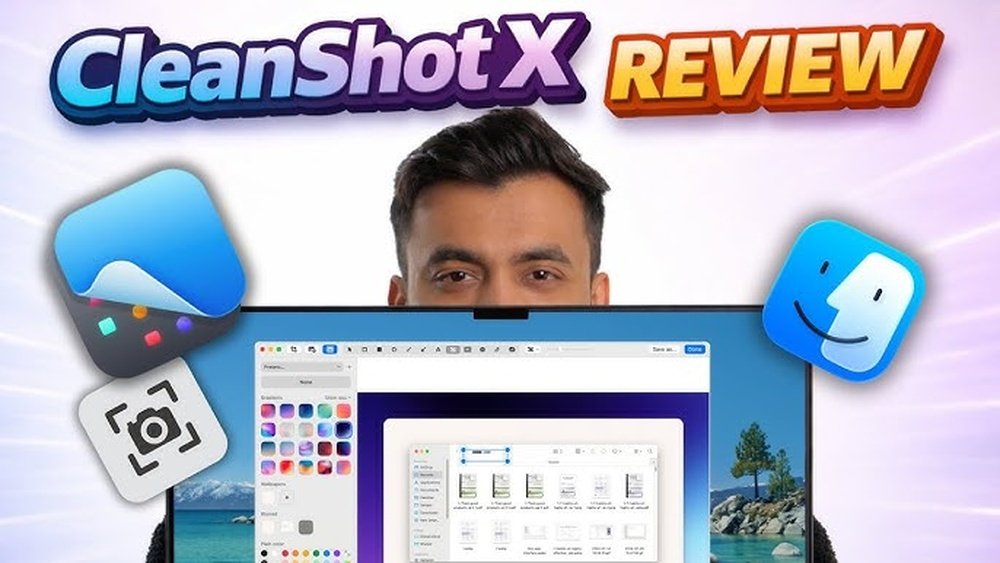
Cleanshot Review: Ultimate Screen Capture Tool for Productivity

If you often find yourself capturing screenshots or recording your screen, you know how frustrating it can be when the tools just don’t keep up. What if there was an app designed to make this process faster, easier, and more powerful?
That’s exactly where CleanShot X steps in. Whether you want to grab a quick image, annotate it, or even record your screen with audio, this tool promises to streamline your workflow in ways you might not expect. Curious to know if CleanShot X is the right fit for your needs?
Keep reading—this review will walk you through its features, benefits, and whether it lives up to the hype. Your next screenshot experience could be a game-changer.
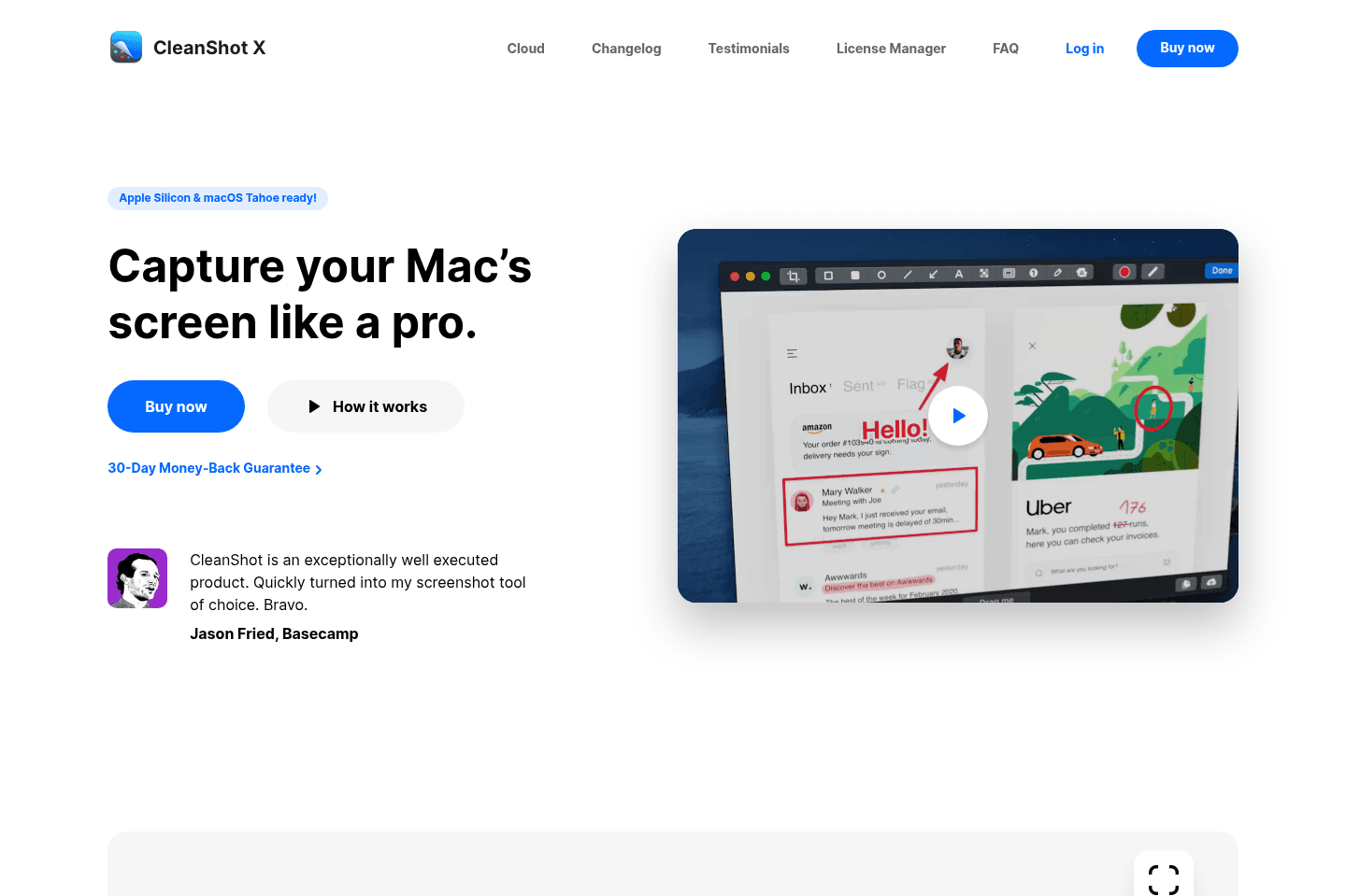
Credit: efficient.app
Key Features
Cleanshot offers a range of features that simplify capturing and sharing your screen. These features cover both screenshots and video recording. They help users work faster and communicate clearly. Below are some key features that make Cleanshot stand out.
Screenshot Options
Cleanshot lets you capture the full screen, a selected area, or a window. You can also grab a specific menu or a timed screenshot. These options make it easy to get exactly what you need.
Screen Recording Tools
You can record your entire screen or just a part of it. The app supports smooth video capture for tutorials or presentations. It also lets you pause and resume recordings for better control.
Annotation Capabilities
After taking a screenshot, you can add text, arrows, shapes, and highlights. These tools help explain details quickly and clearly. Editing is simple and fast within the app itself.
Scrolling Capture
Cleanshot can capture long web pages or documents in one image. It scrolls automatically while taking the screenshot. This saves time and avoids multiple shots.
Webcam Overlay
This feature lets you add your webcam video over the screen recording. It is useful for video calls, tutorials, or presentations. You can move and resize the webcam window easily.
Audio Capture
The app records system sound and microphone audio together. This is perfect for creating voiceovers or capturing game sounds. Audio quality stays clear and synced with the video.
User Interface
The user interface of CleanShot is designed to make capturing and editing screenshots simple. It blends well with macOS, offering a smooth experience. Users can quickly find tools and options without clutter or confusion. This section explores how CleanShot’s interface performs in design, ease, and customization.
Native Macos Design
CleanShot’s interface follows macOS design rules closely. It uses familiar icons and menus that Mac users know well. The app fits perfectly with the system’s light and dark modes. This native look helps users feel comfortable right away. The smooth animations and clear fonts add to the polished feel. CleanShot looks like it belongs on every Mac.
Ease Of Use
CleanShot keeps things simple. The main tools are easy to spot and use. You can capture your screen with just a few clicks or shortcuts. Editing tools appear right after you take a screenshot. This saves time and effort. Even beginners can quickly learn how to use the app. The clean layout avoids confusion and speeds up workflow.
Customization Settings
CleanShot offers many settings to match your style. You can change capture shortcuts to fit your habits. The app lets you choose default file formats and save locations. Annotation tools can be tailored to your needs too. Users can enable or disable features like mouse click effects. This level of control helps you work faster and more comfortably.
Performance
Performance is a key factor for any screenshot tool. CleanShot delivers smooth and efficient functionality. It handles tasks quickly without lag or delays. Users can rely on it for everyday screen capture needs. The app balances speed with quality, providing a seamless experience. Below, we explore its speed, resource use, and reliability.
Speed And Responsiveness
CleanShot launches instantly and responds to commands fast. Capturing screenshots takes only a second or two. Editing and annotation tools open without delay. The app’s interface feels fluid and natural. Users can capture multiple screenshots in quick succession. This speed boosts productivity for work or personal use.
Resource Usage
CleanShot uses minimal system resources. It runs quietly in the background without slowing the computer. CPU and memory consumption stay low, even during screen recording. This efficiency ensures other apps continue running smoothly. CleanShot suits both older and newer Mac models. It keeps your system stable while working.
Reliability
CleanShot performs consistently without crashes or errors. Screenshots save correctly every time. Cloud uploads and file sharing work without issues. The app handles long screen recordings without failure. Users trust CleanShot for important tasks and projects. Its reliability makes it a dependable tool for daily use.
Cloud Integration
Choosing the right screenshot tool can improve your workflow and save time. CleanShot X offers many features that stand out against other options. Comparing it with competitors helps highlight its strengths and weaknesses. This section breaks down how CleanShot X performs in different areas.
Cleanshot X Vs Shottr
CleanShot X and Shottr both serve Mac users who need screenshots and screen recordings. CleanShot X supports scrolling capture and internal audio recording. Shottr focuses on quick, lightweight captures with minimal setup. CleanShot X has advanced annotation tools that Shottr lacks. Shottr is free, while CleanShot X requires a purchase. Users who want more editing features may prefer CleanShot X. Those needing simple captures may find Shottr sufficient.
Advantages Over Built-in Mac Tools
Built-in Mac tools offer basic screenshot functions but have limits. CleanShot X adds scrolling capture for long web pages or documents. It also allows screen recording with webcam overlay. The app highlights mouse clicks and keystrokes automatically. Users can annotate screenshots directly without opening another app. CleanShot X includes cloud storage for easy sharing. These features save time and reduce extra steps.
Alternative Apps Overview
Other popular apps include Snagit, Monosnap, and Lightshot. Snagit is feature-rich but expensive and complex. Monosnap offers free basic capture with cloud options but fewer editing tools. Lightshot is simple and fast but lacks screen recording. CleanShot X balances ease of use with powerful features. It fits users who want more than basic tools but less complexity than heavy software.
Comparison With Competitors
Understanding the pricing and licensing of CleanShot is essential before making a purchase. This section breaks down how you can acquire CleanShot, manage its licenses, and assess its overall value.
One-time Purchase Model
CleanShot uses a one-time purchase model. You pay once and get full access to the app. This avoids monthly or yearly subscription fees. It is simple and clear for users who want long-term use. This pricing style suits people who dislike recurring payments.
License Management
Managing CleanShot licenses is straightforward. Each license grants use on a limited number of devices, typically up to two or three. You can transfer licenses if you change computers. The company provides clear instructions for license activation and deactivation. This system helps keep control over your software use.
Value For Money
CleanShot offers strong value for its price. The features include advanced screenshot tools and screen recording options. These tools save time and improve productivity. The one-time fee often costs less than competing subscriptions over time. For frequent users, CleanShot pays off quickly.

Credit: www.youtube.com
Pricing And Licensing
User feedback plays a crucial role in understanding how CleanShot performs in real-life use. It reflects both the strengths and weaknesses seen by everyday users. This section shares a balanced view based on user experiences and community discussions.
Positive Reviews
Many users praise CleanShot for its easy-to-use interface. The app speeds up the screenshot process. Annotation tools get special mentions for being simple and effective. Users enjoy features like scrolling capture and screen recording. The built-in cloud upload helps share screenshots quickly. Overall, users find CleanShot reliable and efficient.
Common Criticisms
Some users report occasional bugs or crashes during heavy use. A few mention the app could use more advanced editing tools. Others wish for better integration with other software. Pricing is a concern for some, as it is a one-time purchase but on the higher side. Despite these points, most users feel the app offers good value.
Community Insights
The CleanShot user community often shares tips and tricks online. Many highlight how the floating screenshot feature improves workflow. Discussions show that new updates usually address common issues. Users recommend CleanShot for anyone needing regular screenshots on Mac. Community feedback drives ongoing improvements and feature ideas.

Credit: macsources.com
Conclusion
CleanShot offers a simple way to capture and share your screen. It works well for quick screenshots and video recordings. The built-in editing tools help you highlight important parts easily. Cloud storage makes sharing files fast and smooth. This app suits both beginners and regular users.
Try CleanShot if you want a reliable Mac screenshot tool. It helps you save time and stay organized.