“How to Free Up Space on a Mac”: Easy, Fast, and Effective Tips

Is your Mac running low on storage? When your disk space gets tight, your computer slows down, apps struggle to run, and it’s frustrating to get anything done.
But don’t worry—you don’t have to be a tech expert to reclaim that space. You can free up room quickly by following simple, effective steps that clear out clutter and optimize your Mac’s storage. In this guide, you’ll discover easy ways to remove unused apps, delete old files, and manage your storage like a pro.
Ready to make your Mac faster and more efficient? Keep reading to find out exactly how to free up space on your Mac today.
Check Mac Storage
Checking your Mac storage is the first step to free up space. It helps you see which files and apps use the most space. You can decide what to delete or move to an external drive.
Mac offers tools to view storage details and optimize space easily. Let’s explore how to check your Mac storage effectively.
View Storage Breakdown
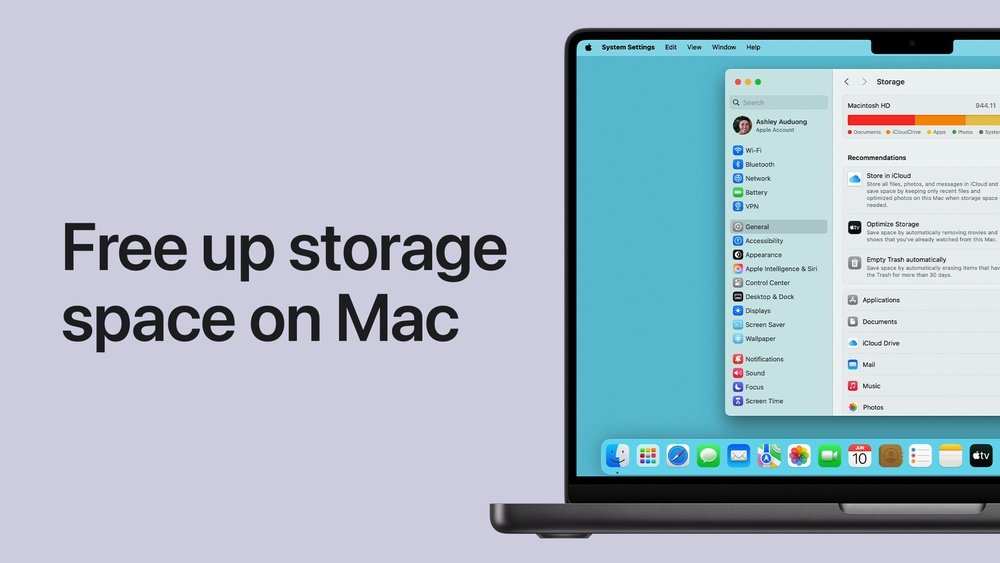
To view your storage breakdown, click the Apple menu and select About This Mac. Next, click the Storage tab. You will see a color-coded bar showing used and available space.
The bar divides storage into categories like Apps, Photos, Documents, and System. This view helps you find large files or apps taking up space. You can click Manage to open detailed storage options.
Use Optimize Storage Feature
The Optimize Storage feature frees up space by removing watched movies and TV shows. It also deletes old email attachments automatically. You can turn it on in the storage management window.
To enable it, open the Storage tab and click Manage. Then select Optimize Storage and follow the prompts. This feature keeps your Mac clean without deleting important files.
Credit: mackeeper.com
Remove Unused Apps
Removing unused apps is a simple way to free up space on a Mac. Many applications stay installed but are rarely or never used. These apps take up valuable storage that could be used for files or other programs.
Deleting apps you no longer need helps improve your Mac’s performance. It also makes your system cleaner and easier to navigate. Below are two effective methods to remove these unwanted applications.
Delete Applications Manually
Open the Finder and select the Applications folder. Scroll through the list and find apps you do not use. Drag each app icon to the Trash. Alternatively, right-click the app and choose “Move to Trash.”
After moving apps to the Trash, empty it to free up space. Open the Trash, then click “Empty” at the top right. Keep in mind, some apps leave behind small files even after deletion. You may want to clear those separately.
Use App Uninstaller Tools
Some apps come with their own uninstallers. These tools remove the app and all related files. This method ensures no leftover data wastes space.
There are also third-party uninstallers available. These programs scan your system and remove apps completely. They are helpful for cleaning hidden files that manual deletion misses.
Choose a trusted uninstaller for safety. Run the tool and follow on-screen instructions. This approach saves time and keeps your Mac tidy.
Clear Cache Files
Cache files store temporary data to speed up apps and websites on your Mac. Over time, these files build up and take valuable space. Clearing cache files frees up storage and can improve your Mac’s performance. Focus on browser cache and system caches to recover the most space. Deleting these files is safe because your Mac will recreate needed data later.
Delete Browser Cache
Browsers save website data to load pages faster. This cache grows large after regular use. Clearing browser cache removes stored images, scripts, and cookies. Open your browser’s settings or preferences menu. Find the section for privacy or history and locate the option to clear browsing data. Choose to clear cached images and files. This step frees space and can fix loading problems on websites.
Remove System Caches
System caches include temporary files used by macOS and apps. These files help speed up processes but can become outdated or corrupted. To remove them, open Finder and press Shift + Command + G. Type ~/Library/Caches and press Enter. Browse the folders and delete unnecessary cache files. Do not remove folders themselves—only files inside. Restart your Mac to rebuild fresh caches and improve system speed.
Delete Large And Old Files
Deleting large and old files is an effective way to free up space on your Mac. These files often take up a significant portion of your storage. Removing them can improve your Mac’s speed and performance. This process helps you identify files you no longer need or use. It also keeps your system organized and clutter-free.
Find Large Files With Finder
Open Finder on your Mac. Click on the “File” menu and select “Find.” In the search bar, choose “File Size” from the filter options. Set the size to “is greater than” and enter a value like 100 MB. This will show files larger than 100 MB. Review the files and delete any that are unnecessary. Be careful not to delete system files or important documents.
Sort And Clean Downloads Folder
The Downloads folder often holds many old files. Open Finder and go to your Downloads folder. Sort files by size or date to find large or old items. Delete files you no longer need or have already saved elsewhere. This simple step can free up a surprising amount of storage quickly. Remember to empty your Trash after deleting files to reclaim space.
Manage Ios Backups
Managing iOS backups on your Mac helps free up valuable storage space. Old backups can take up several gigabytes without you noticing. Regularly checking and deleting unnecessary backups keeps your Mac running smoothly.
iOS backups store data from your iPhone or iPad. Each backup includes app data, settings, and device information. Over time, these backups accumulate, especially if you back up multiple devices.
Locate Old Backups
To find old iOS backups, open Finder on macOS Catalina or later. Select your device under “Locations” in the sidebar. Click “Manage Backups” to see all stored backups.
On older macOS versions, open iTunes and go to Preferences. Click the Devices tab to view backup files. Identify backups by device name and date.
Delete Unnecessary Backups
Select backups that are no longer needed. For example, backups of devices you no longer use or very old ones. Click “Delete Backup” to remove them.
Deleting backups frees up space instantly. Be sure to keep the latest backup for your current device. Removing just a few backups can clear several gigabytes of storage.

Credit: www.youtube.com
Organize Desktop And Trash
Organizing your desktop and trash can free up valuable space on your Mac. A cluttered desktop slows down your system and makes files hard to find. The Trash stores deleted files until you empty it, taking up space silently. Regular maintenance keeps your Mac running smoothly and your storage clear.
Clean Up Desktop Icons
Too many icons on your desktop can slow your Mac. Group files into folders to reduce clutter. Sort items by type or project for easy access. Delete files you no longer need. Keeping the desktop tidy improves performance and helps you find things faster.
Empty The Trash
Deleting files moves them to the Trash but does not remove them yet. The Trash still uses disk space until it is emptied. Right-click the Trash icon and select “Empty Trash” to free up space. Schedule regular trash emptying to avoid hidden storage problems.
Compress Files
Compressing files is a smart way to save space on your Mac. It shrinks file sizes without losing data. This method works well for files you do not use often. Smaller files take up less room and keep your Mac running smoothly.
Use Built-in Compression
Macs have a simple tool to compress files. Select one or more files in Finder. Right-click and choose “Compress” from the menu. The Mac creates a ZIP file that is smaller. You can keep the original files or delete them to save space.
This built-in option is quick and easy. No extra software is needed. It works best for documents, images, and folders. Compressed files stay usable and can be opened anytime.
Archive Rarely Used Files
Some files you keep just in case. These files can be compressed and stored away. Create an archive of old projects, photos, or videos. Move the archive to an external drive or cloud storage.
This frees up internal space but keeps files accessible. Archiving prevents clutter on your Mac. It is a good habit to review and compress files regularly. The result is more space and better performance.
Credit: mackeeper.com
Transfer Files To External Storage
Transferring files to external storage is a simple way to free up space on your Mac. It moves large files off your computer, making more room for new data and apps.
This process helps keep your Mac running smoothly and prevents storage from filling up too fast. You can use external drives or cloud storage to store your files safely.
Move Large Media Files
Media files like videos, photos, and music take up a lot of space. Moving these large files to an external device frees up significant storage on your Mac.
Start by sorting files by size in Finder. Drag the biggest files to your external drive. This keeps your Mac light and fast.
Use External Drives Or Cloud
External drives offer a quick way to store files outside your Mac. USB flash drives or portable hard drives work well for this.
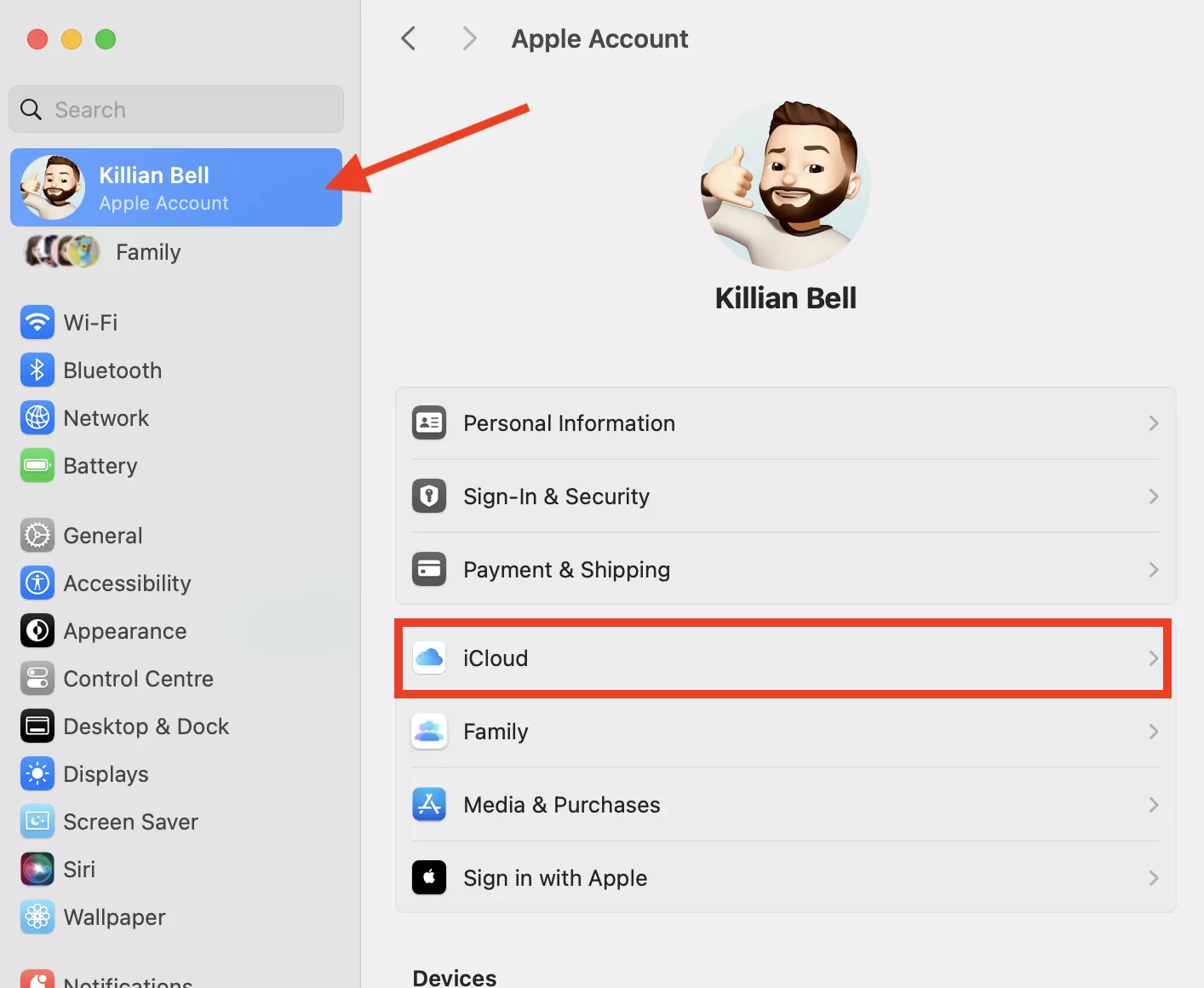
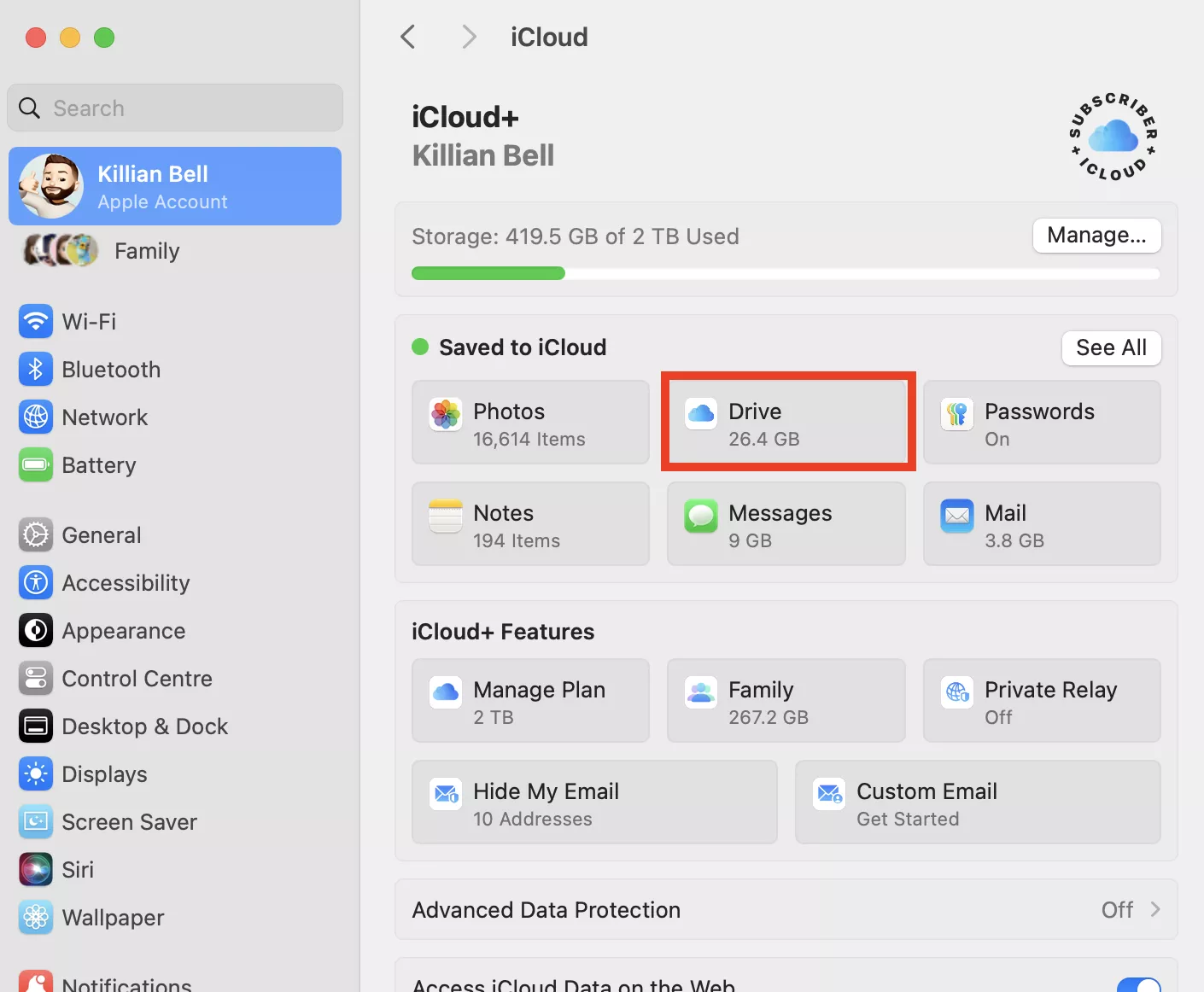
Cloud storage services like iCloud, Google Drive, or Dropbox also help free space. Upload your files to the cloud and delete local copies.
This method lets you access your files from any device without cluttering your Mac’s storage.
Use Cleaning Apps
Cleaning apps make freeing up space on a Mac easier and faster. They scan your system for junk files, caches, and duplicates. These apps help you remove unnecessary data safely. Using the right tool can save hours of manual cleanup. Many cleaning apps also provide useful features to keep your Mac running smoothly over time.
Choose Trusted Cleaners
Select cleaning apps with good reviews and proven safety. Avoid unknown or poorly rated tools. Trusted apps protect your important files from accidental deletion. Look for apps that offer clear explanations of what they clean. Some popular choices have regular updates and responsive customer support. This reduces risks and improves cleaning effectiveness.
Automate Cleanup Tasks
Many cleaning apps let you schedule automatic scans. Set regular intervals to clear junk without manual effort. Automation keeps your Mac clutter-free all the time. You can customize what the app removes during each cleanup. This way, your storage stays optimized without interrupting your work. Automation saves time and keeps your Mac healthier longer.
Conclusion
Freeing up space on your Mac keeps it running smoothly. Start by deleting files you no longer need. Remove unused apps and clear caches regularly. Organize your files to find large items easily. Don’t forget to empty the Trash to reclaim space.
Using built-in tools helps manage storage effectively. Regular cleanup prevents slowdowns and storage problems. Small actions add up and improve your Mac’s performance. Keep your Mac clutter-free for a better experience every day.