Best Screen Recording Software for Tutorials: Top Picks 2026

If you want to create clear, engaging tutorials, choosing the right screen recording software is key. Whether you’re teaching a skill, explaining a process, or sharing tips, your audience needs to see every step clearly.
But with so many options out there, how do you find the best tool that fits your needs? You want software that’s easy to use, offers helpful features like annotations and webcam overlay, and produces professional-quality videos without a steep learning curve.
You’ll discover the best screen recording software for tutorials—tools that make your work look polished and help your viewers learn effortlessly. Keep reading to find the perfect match for your tutorial goals and start creating videos that truly stand out.
Credit: www.ispringsolutions.com
Top Screen Recorders
Choosing the right screen recorder makes tutorial creation easier and more effective. The best screen recording tools offer clear video quality, easy editing, and useful features. Some focus on professional editing, while others prioritize simplicity and speed.
This section highlights the top screen recorders for tutorials. Each tool suits different needs and skill levels. Explore them to find the best fit for your tutorial projects.
Camtasia For Professionals
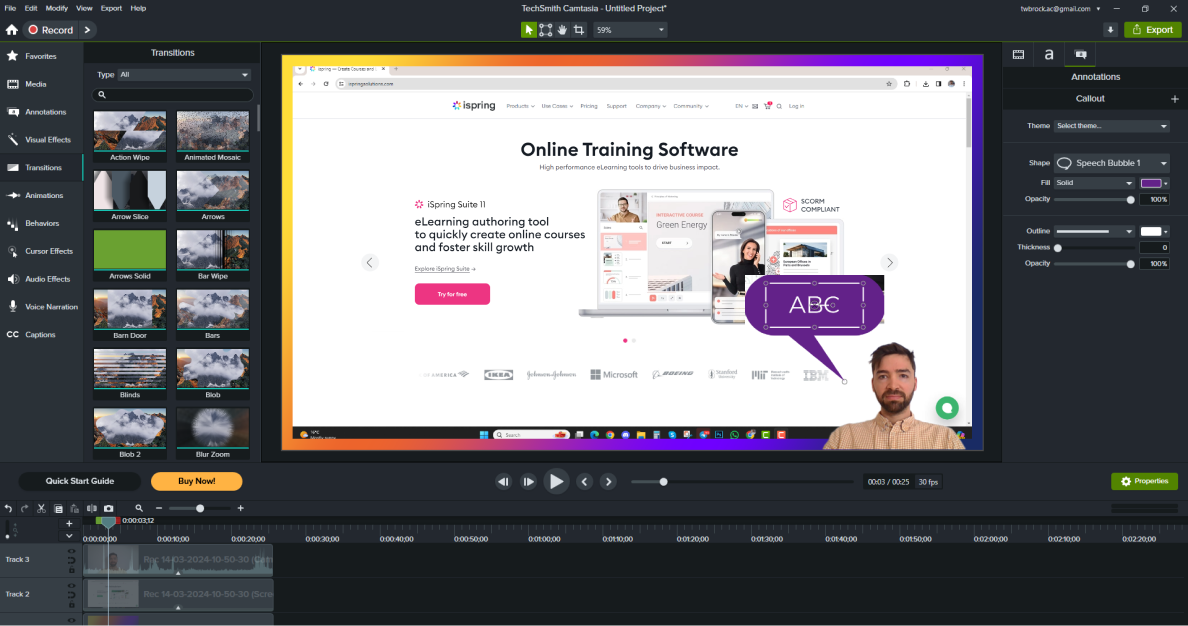
Camtasia is perfect for detailed and polished tutorials. It offers a powerful video editor with a timeline feature. Users can add effects, transitions, and annotations easily. Camtasia supports webcam and screen recording simultaneously. It works on both Windows and Mac.
Screenflow For Mac Users
ScreenFlow is designed specifically for Mac users. It captures high-quality screen and webcam videos. The built-in editor allows users to add text, transitions, and animations. ScreenFlow also supports recording multiple screens. It is ideal for creating professional tutorials on Mac.
Snagit For Quick Videos
Snagit is great for fast screen captures and short tutorials. It includes simple editing tools to add text, arrows, and highlights. Users can capture images or videos in seconds. Snagit works on Windows and Mac. It is perfect for quick explanations and step-by-step guides.
Screenpal For Simplicity
ScreenPal offers a straightforward recording experience. Its interface is clean and easy to use. Users can record screen, webcam, or both with one click. ScreenPal includes basic editing features for trimming and captions. It is a good choice for beginners and simple tutorials.
Obs Studio For Free Recording
OBS Studio is a free, open-source screen recorder. It supports high-quality recording and live streaming. Users can customize scenes and sources for flexible recording setups. OBS Studio works on Windows, Mac, and Linux. It suits users who want powerful features without cost.
Bandicam For Gaming Tutorials
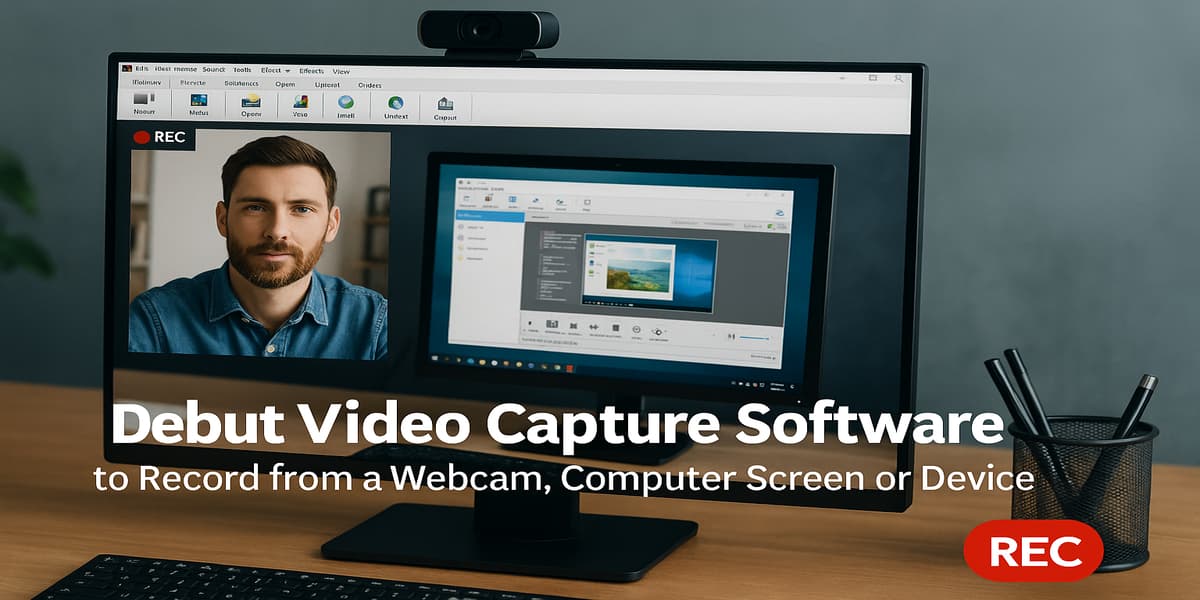
Bandicam focuses on game recording and high-performance capture. It records in high resolution with minimal lag. Users can add webcam overlays and real-time drawing. Bandicam supports recording external devices like webcams and consoles. It is ideal for gaming tutorials and walkthroughs.
Credit: lestallion.com
Free Screen Recording Tools
Free screen recording tools offer excellent options for creating tutorials without extra costs. These programs provide essential features to capture your screen clearly. They work well for beginners and those with simple recording needs. Using free tools helps you focus on teaching without worrying about software expenses.
Most free screen recorders let you capture video and audio. Some also include basic editing and sharing options. Choosing the right tool depends on your computer and the features you need. Below are some popular free screen recording tools for tutorial creators.
Sharex For Windows
ShareX is a powerful free screen recorder for Windows users. It captures full screen, specific windows, or custom areas. You can record video in high quality without time limits. It also supports GIF creation for quick clips.
ShareX offers many annotation tools to highlight parts of your tutorial. It uploads recordings directly to many file-sharing services. Its open-source nature means constant updates and improvements.
Screenrec With Cloud Storage
ScreenRec is a lightweight screen recorder with free cloud storage. It works on Windows, Mac, and Linux. ScreenRec captures your screen with audio and webcam input. The cloud storage lets you share videos instantly via links.
This tool keeps your files safe and accessible from any device. ScreenRec also offers basic editing like trimming. It is suitable for quick tutorial creation and sharing.
Quicktime Player On Mac
QuickTime Player comes pre-installed on Mac computers. It allows simple screen recording without extra software. You can record the full screen or a selected area. QuickTime also records audio from a microphone.
Its interface is clean and easy to use for beginners. After recording, you can trim videos directly in QuickTime. This tool is ideal for straightforward tutorials on Mac devices.
Microsoft Clipchamp Features
Microsoft Clipchamp is a free video editor with screen recording features. It runs on Windows 10 and 11 through a browser or app. Clipchamp captures your screen and webcam simultaneously. It supports recording in HD quality.
The editor includes drag-and-drop tools and stock assets for easy video creation. You can add text, transitions, and audio tracks to your tutorials. Clipchamp helps polish videos without complex software.
Must-have Features
Choosing the right screen recording software for tutorials means focusing on key features. These features help make your videos clear and engaging. They also save time during editing and improve viewer understanding.
Below are the must-have features to look for in screen recording software for effective tutorials.
Cursor Effects For Clarity
Cursor effects highlight mouse movements and clicks. They guide viewers to important areas on the screen. Effects like spotlight, magnify, or click animations make it easier to follow steps. This feature reduces confusion, especially in detailed tutorials.
Annotation Tools
Annotation tools let you add text, shapes, and drawings directly on the video. They help emphasize key points and instructions. You can underline, circle, or point to specific parts of the screen. Annotations improve learning by making explanations visual and clear.
Webcam Overlay
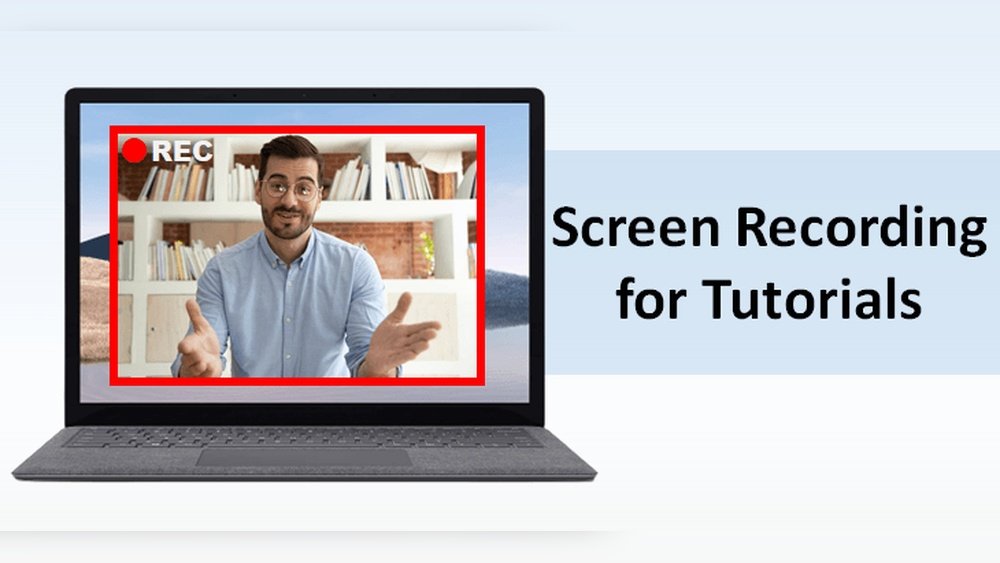
Webcam overlay places a small video of you on the screen recording. It adds a personal touch and builds trust with viewers. Seeing the instructor’s face keeps the audience engaged. This feature is useful for explaining concepts and showing reactions.
Built-in Video Editor
A built-in video editor allows you to trim, cut, and polish your recordings without extra software. You can add transitions, captions, and effects to improve flow. Editing inside the software saves time and ensures your tutorial looks professional.
Recording Tips For Tutorials
Recording tutorials requires clear visuals and smooth narration. Good preparation improves viewer understanding. Follow these tips to create effective tutorial videos. Focus on capture settings, audio quality, screen highlights, and editing.
Each step helps make your tutorials professional and easy to follow. Simple changes can greatly improve the final video.
Choosing Capture Settings
Select the right screen area to record. Choose full screen for broad tutorials. Use window capture to focus on one app. Adjust resolution for clear images without large file size. Frame rate should be smooth, usually 30fps is enough. Avoid recording too many unnecessary parts of your screen.
Audio And Voice Narration
Use a good microphone for clear sound. Speak slowly and clearly. Minimize background noise by recording in a quiet room. Test your audio levels before starting. Add voice narration to explain steps as you record. Keep sentences short and simple for easy understanding.
Screen Highlighting Techniques
Use cursor effects to draw attention to clicks and movements. Highlight important buttons or areas with shapes or colors. Zoom in on details for clarity. Use annotations like arrows or text to emphasize points. Avoid too many effects that distract from content. Keep highlights consistent and easy to follow.
Editing For Professional Finish
Cut out mistakes and long pauses to keep viewers engaged. Add intro and outro sections with your branding. Include captions or subtitles for better comprehension. Use transitions to smooth scene changes. Adjust audio levels to maintain volume balance. Preview your video before final export to check quality.
Software Selection Guide
Selecting the right screen recording software is essential for creating clear tutorials. This guide helps you find software that fits your skill level, budget, and needs. Consider these key factors to make the best choice for your tutorials.
Matching Tools To Skill Levels
Beginners benefit from simple interfaces with basic features. Choose software that offers easy recording and straightforward editing. Advanced users might need more control with detailed editing tools and effects. Some programs offer step-by-step guides to help new users start quickly.
Balancing Features And Price
Look for software that provides necessary features without extra cost. Free versions often have limits on recording time or watermark the video. Paid options usually include more editing tools and higher quality output. Decide which features are essential before investing in software.
Compatibility Considerations
Check if the software works with your operating system. Some programs are designed only for Windows or Mac. Others support both platforms or even mobile devices. Also, ensure the software supports your preferred video formats for easy sharing and editing.
File Size And Quality
High-quality videos take more storage space. Some software compresses files to save space but may reduce quality. Find a balance between clear visuals and manageable file size. This is important for uploading videos or sharing them online quickly.
Latest Trends In Screen Recording
Screen recording tools continue to evolve, making tutorial creation easier and more effective. Recent advancements focus on smooth workflows, better sharing options, and smarter editing. These updates help creators save time and produce clearer videos. The latest trends reflect the growing demand for integrated, cloud-based, and AI-enhanced features in screen recording software.
Integration With Video Hosting
Many screen recorders now connect directly with popular video hosting sites. This integration lets users upload tutorials instantly. It cuts down on extra steps and speeds up sharing. Platforms like YouTube, Vimeo, and Loom often appear as built-in options. Creators can publish videos without leaving the recording app. This feature improves workflow and reaches audiences faster.
Cloud-based Recording Solutions
Cloud-based screen recording tools store videos online automatically. Users can access their files from any device with internet access. This flexibility suits remote teams and educators. Cloud solutions also offer easy collaboration, allowing multiple users to view or edit videos. They remove the need for large local storage. Backup and security get stronger with cloud hosting.
Ai-powered Editing Features
Artificial intelligence helps simplify video editing tasks. Some screen recorders use AI to trim silences and remove background noise. Others add captions or highlight key moments automatically. These tools reduce manual work and improve video quality. AI features help beginners create polished tutorials quickly. The technology continues to improve, offering smarter edits with less effort.
Credit: democreator.wondershare.com
Conclusion
Choosing the right screen recording software improves your tutorial quality. Simple tools fit quick lessons, while advanced ones suit detailed editing. Consider features like ease of use, editing options, and price. Try a few to find what feels best for you.
Good software helps your audience learn clearly and easily. Start recording today and share your knowledge with confidence.